Start with a split that fits the way you train
After signing up you land on the Splits screen. You can create your own split from scratch or start from a pre-built one.
Once your split is ready, you move to the main workout page. Here you organise training into folders – for example “Push”, “Pull”, “Legs” or “Hypertrophy”, “Strength”, “Deload”.
- Create folders and attach workout templates to each one
- Start empty workouts or copy example workouts from a template
- Drag & drop workouts between folders
- Reorder and collapse folders, edit or delete them anytime
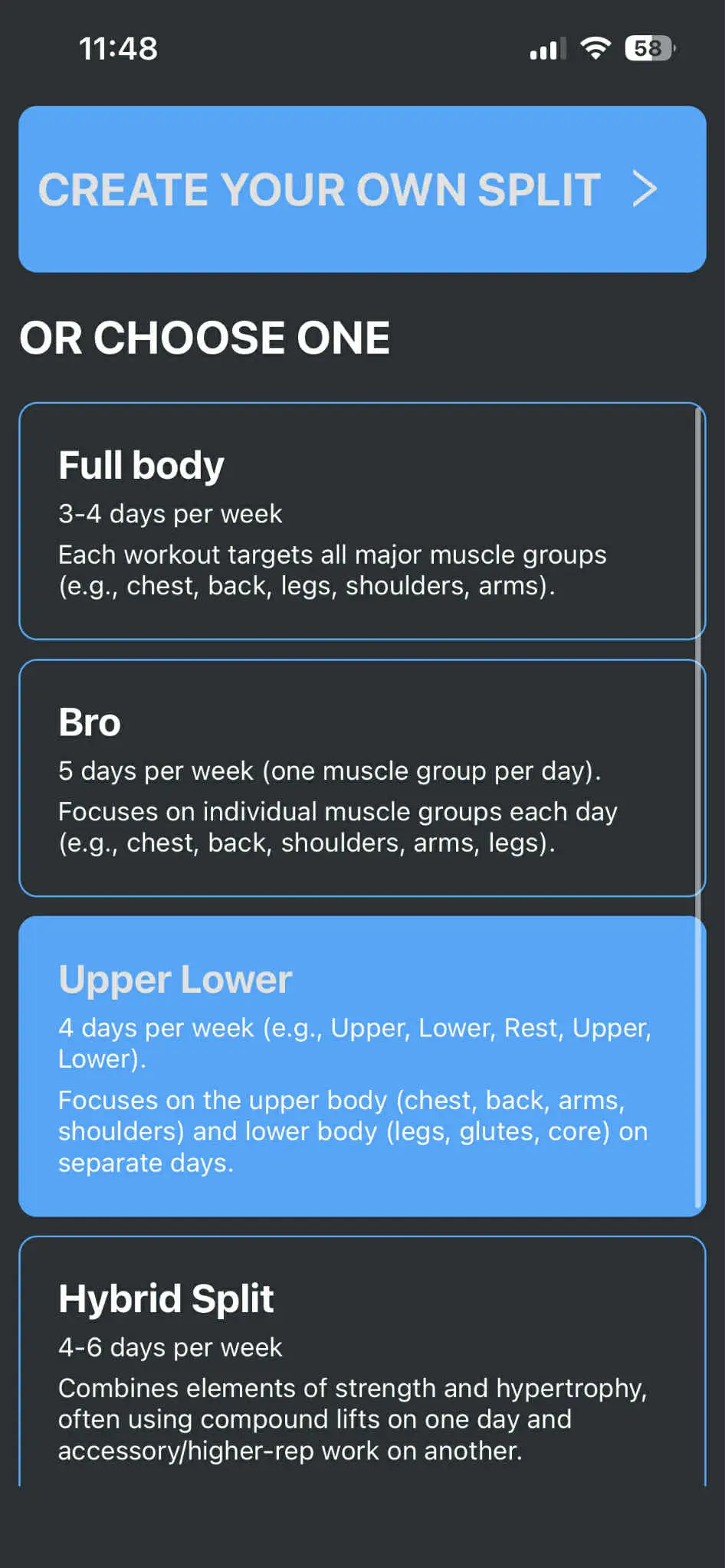
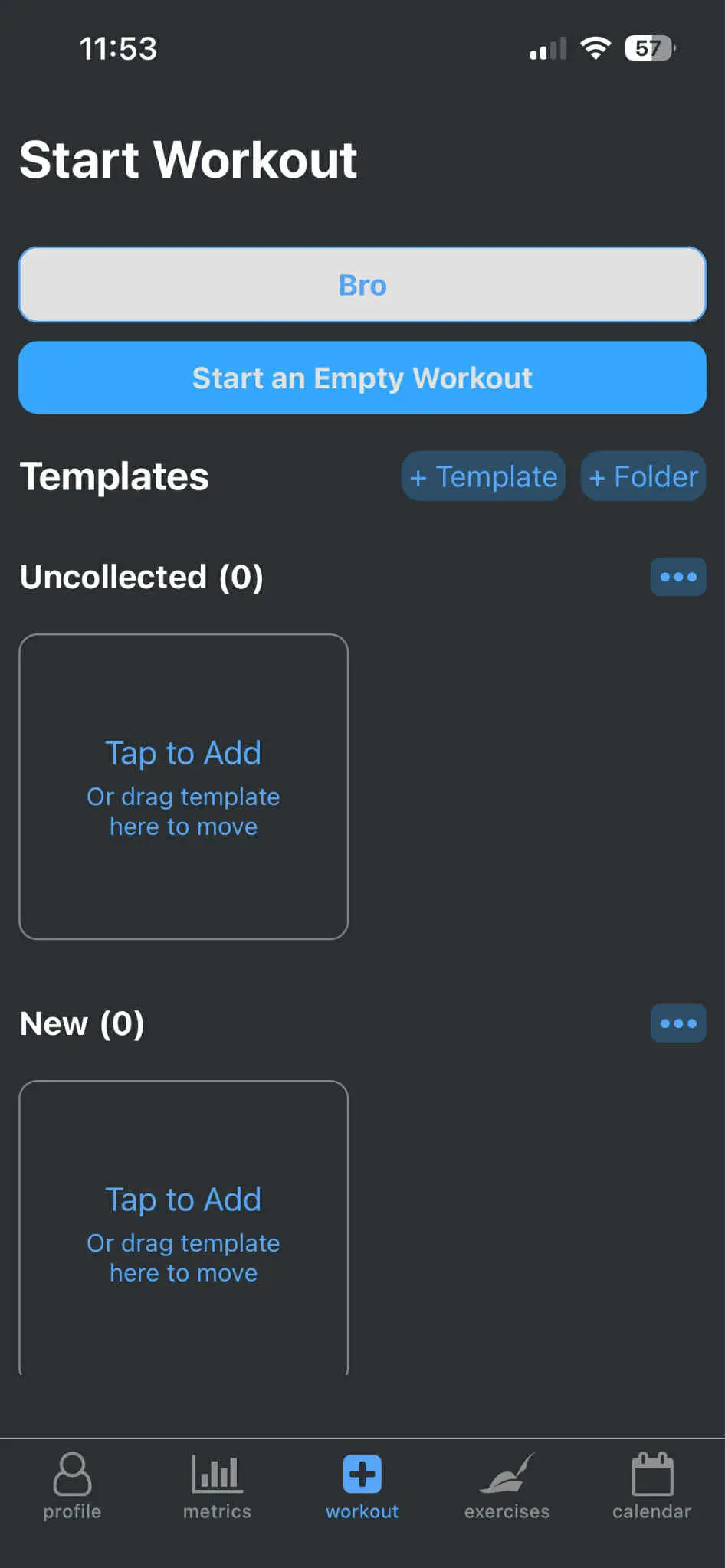
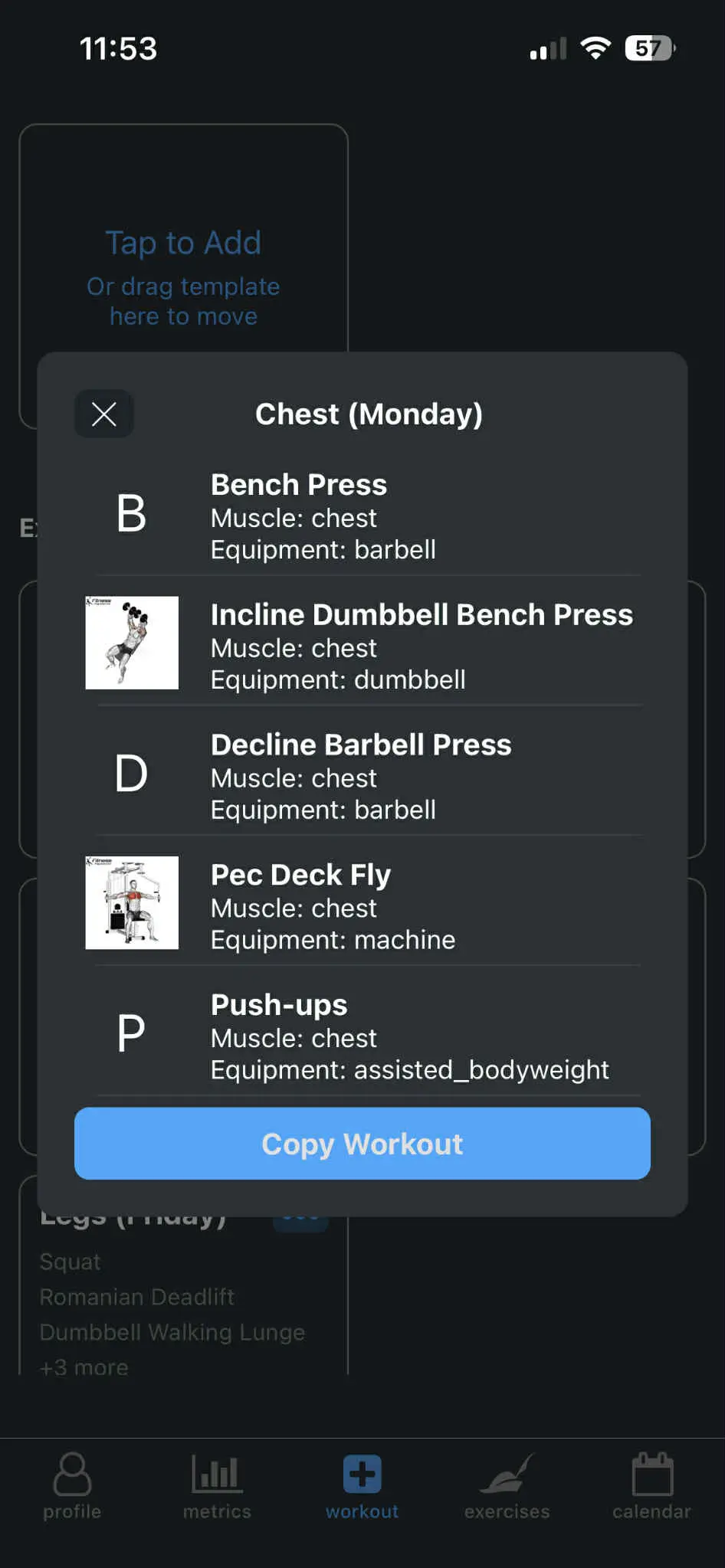
Organise your workouts into folders, templates and splits.
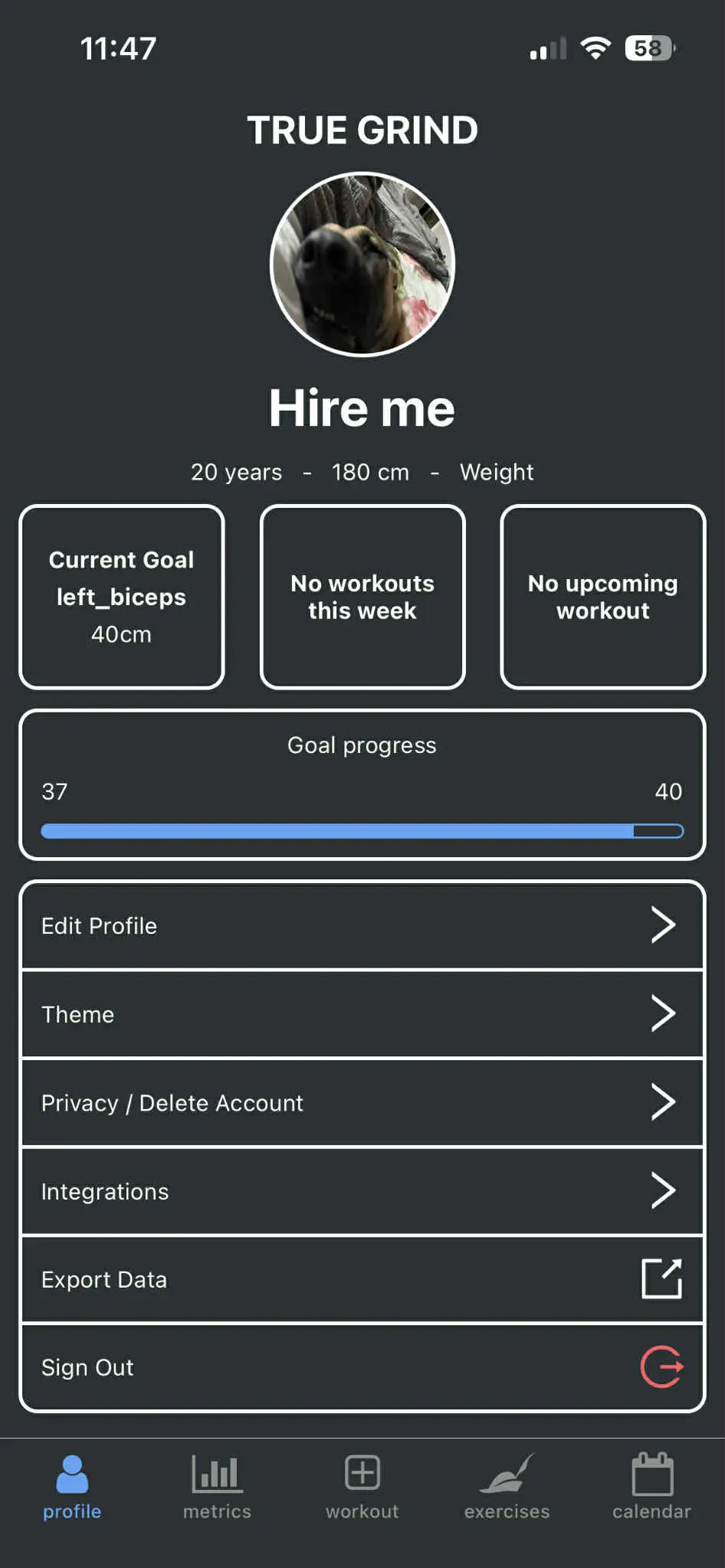
Your profile: one place for your key stats
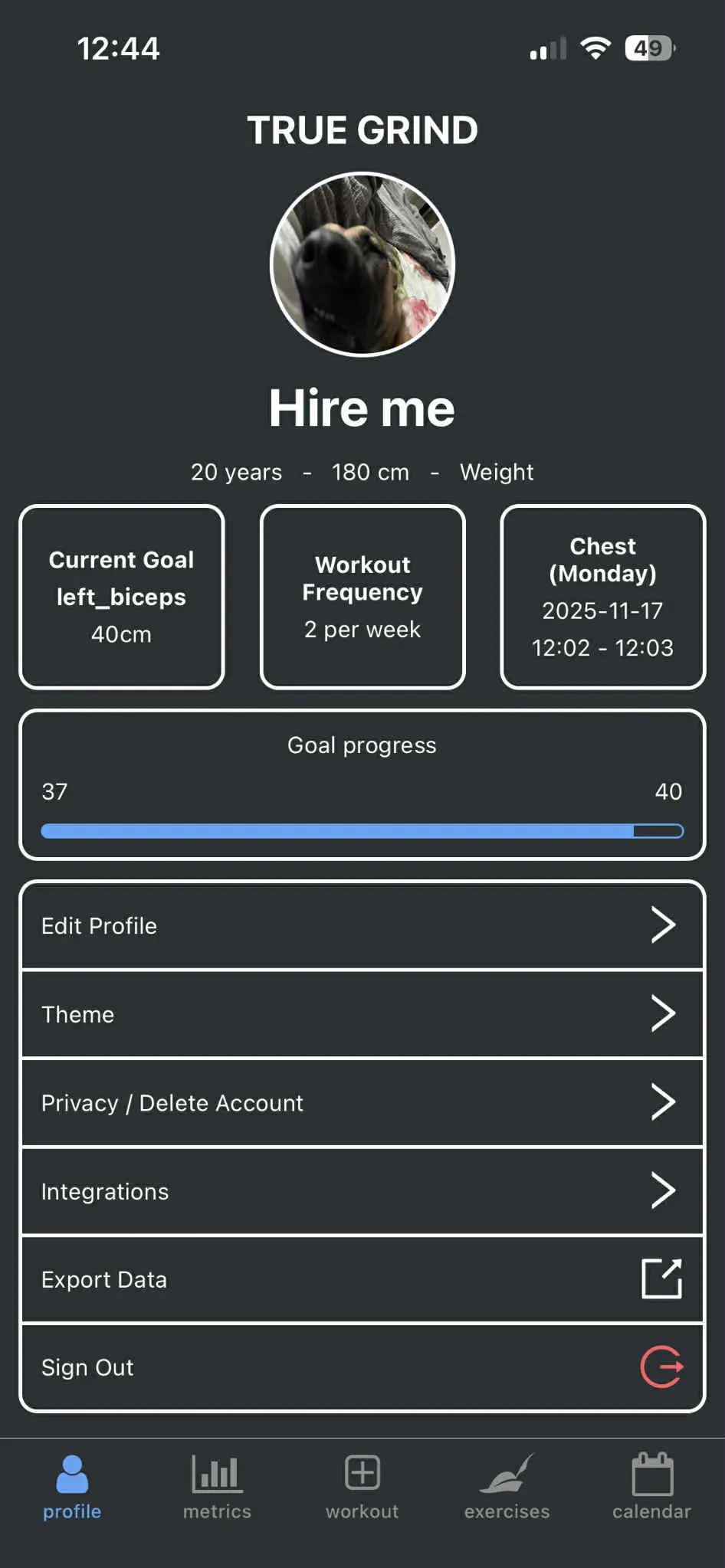
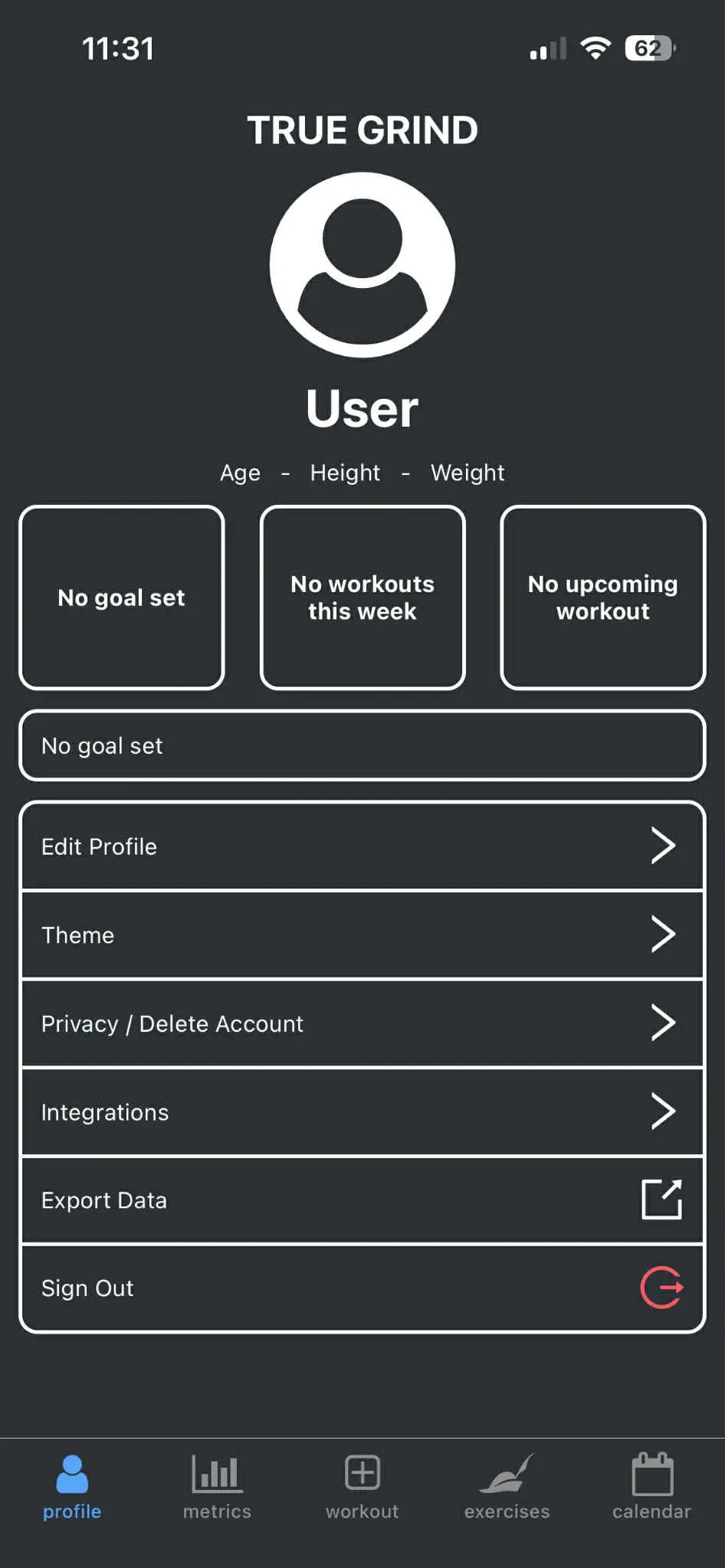
The Profile screen shows who you are and how you’re doing this week at a glance.
- Personal details: photo, name, age, height and weight
- Weekly summary: how many workouts you’ve completed
- Upcoming sessions: workouts you’ve scheduled in the calendar
- Goal tracking: set targets like “40 cm biceps” and see your current progress
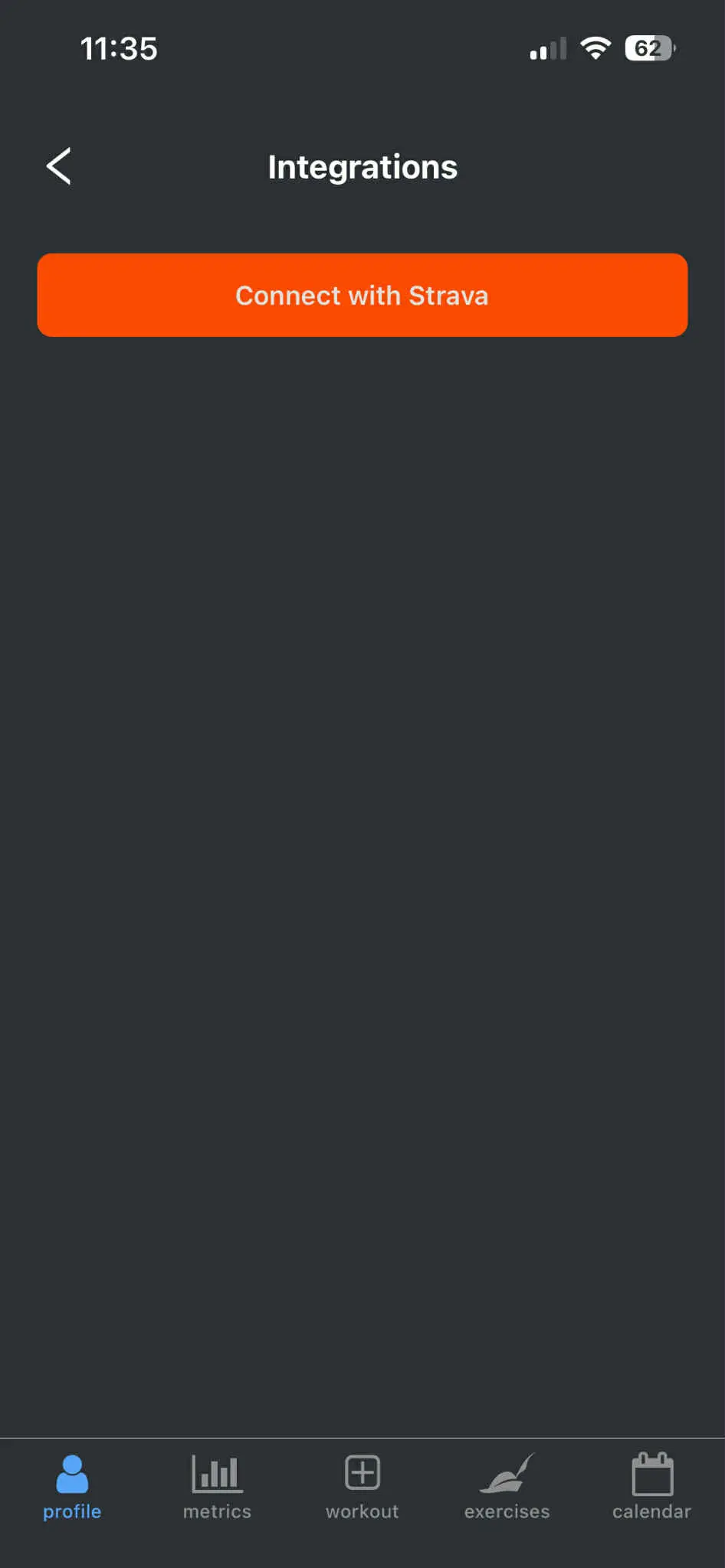
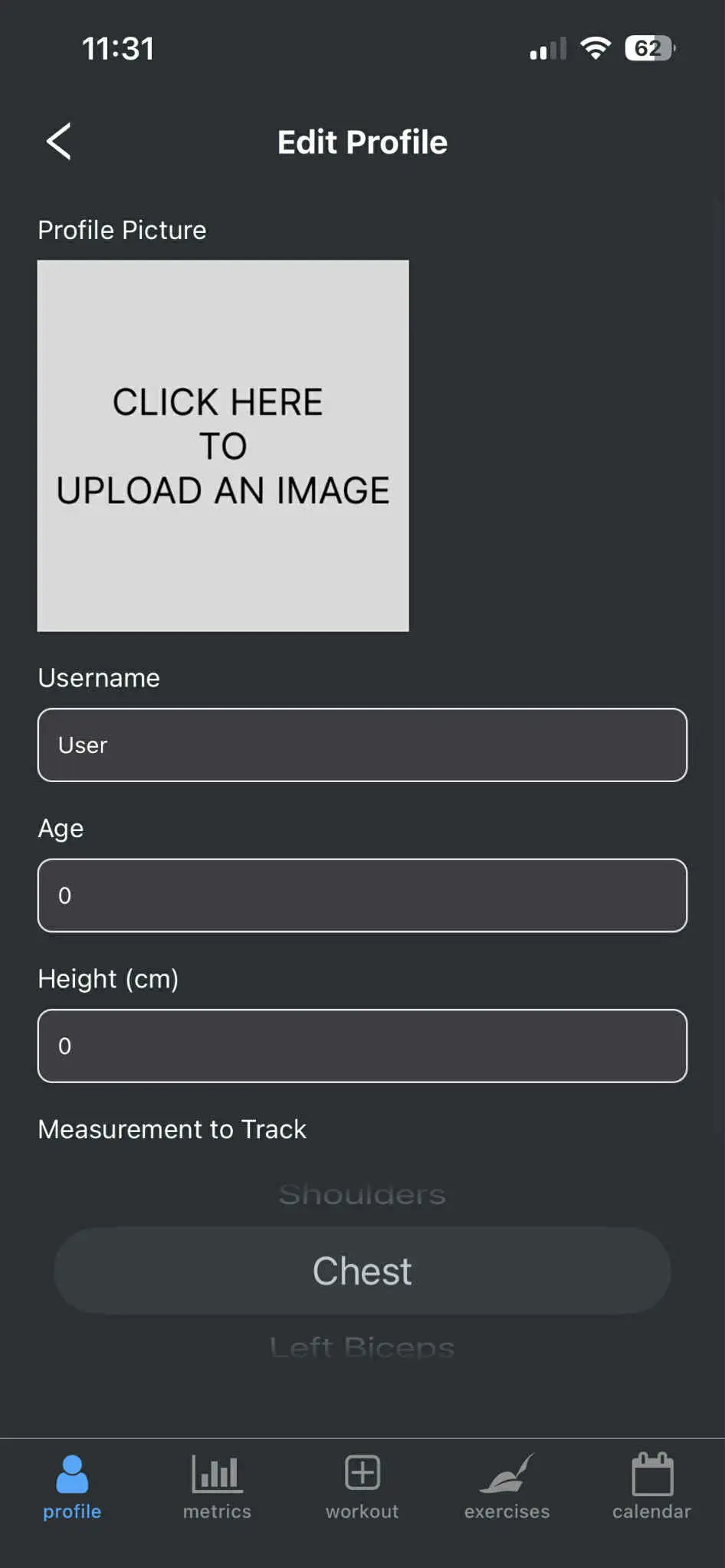
From here you can edit your profile, switch between dark and light themes, connect your account with Strava, export your data, delete the account or sign out.
Metrics that actually show progress
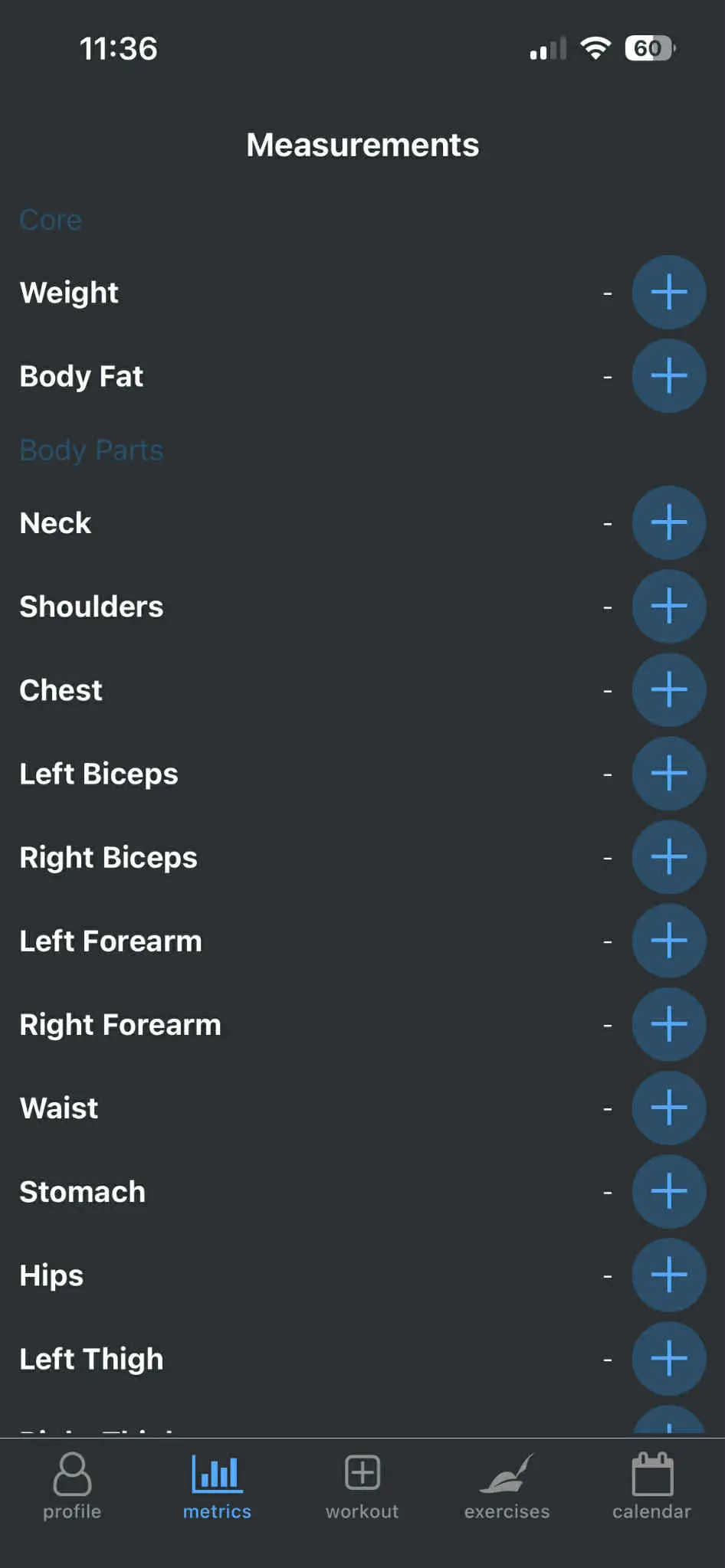
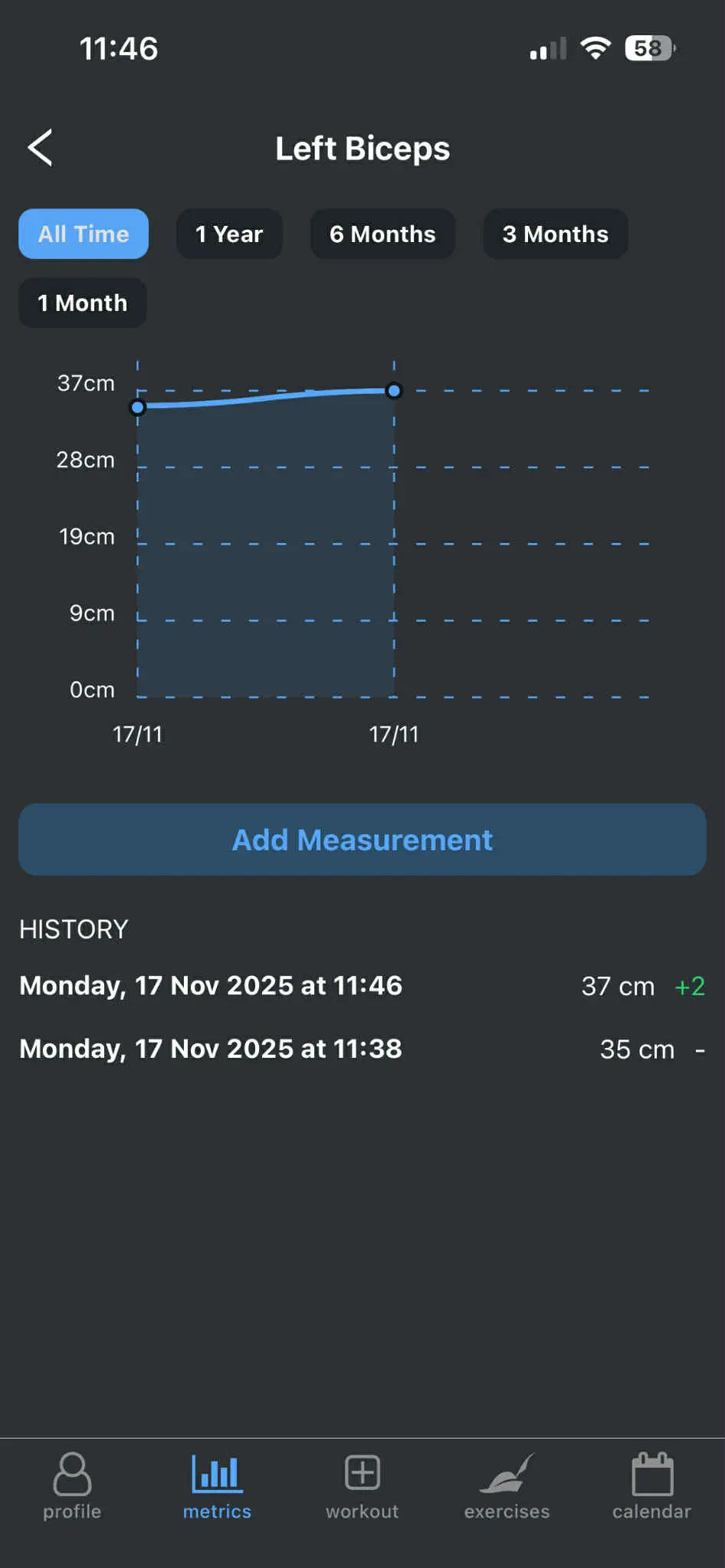
The Metrics tab is where you track body measurements and body-part changes over time.
- Add measurements directly from the list or from a detail view
- Filter by date to see how things changed over a specific period
- View your progress on clear charts and in history lists
- Goals are reflected here and also shown on your profile
Workouts built around sets, structure and focus
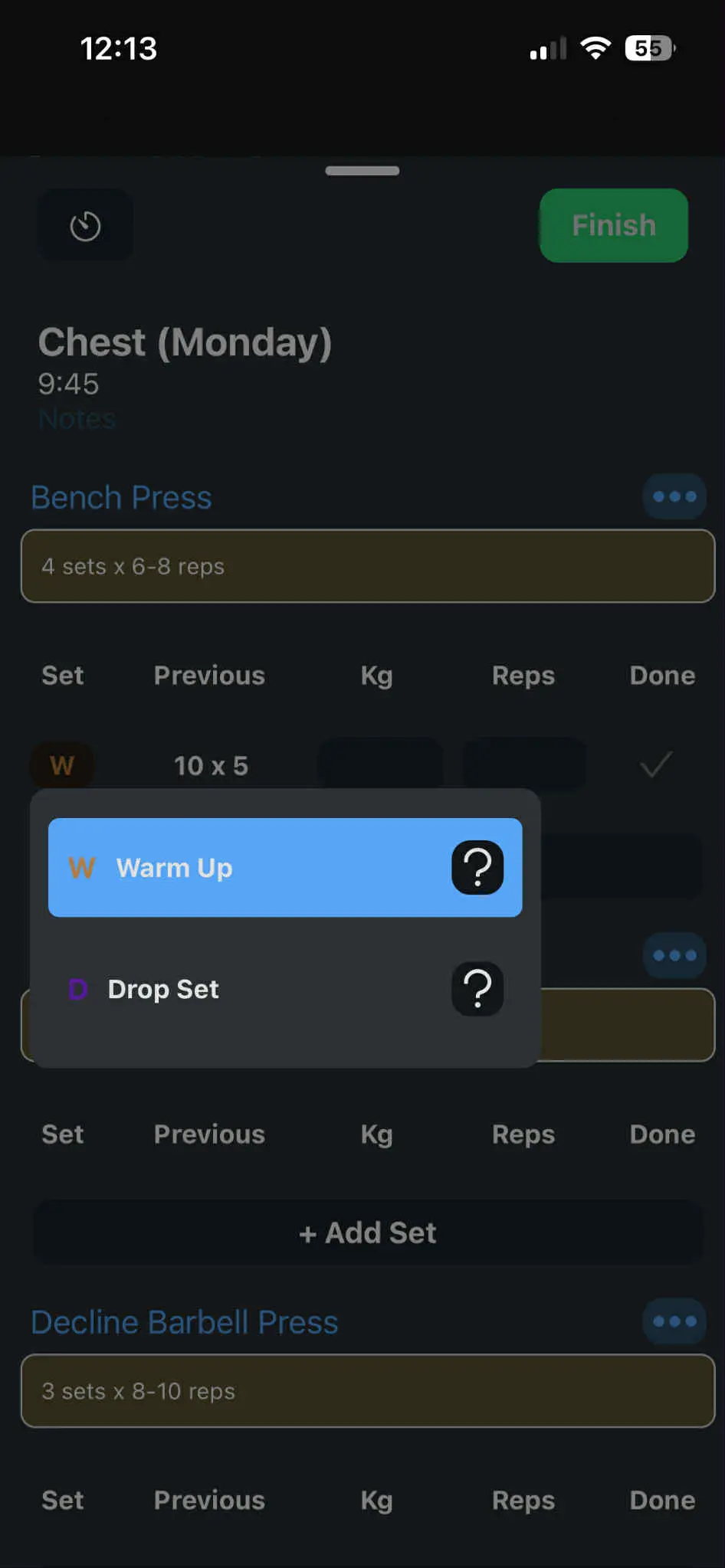
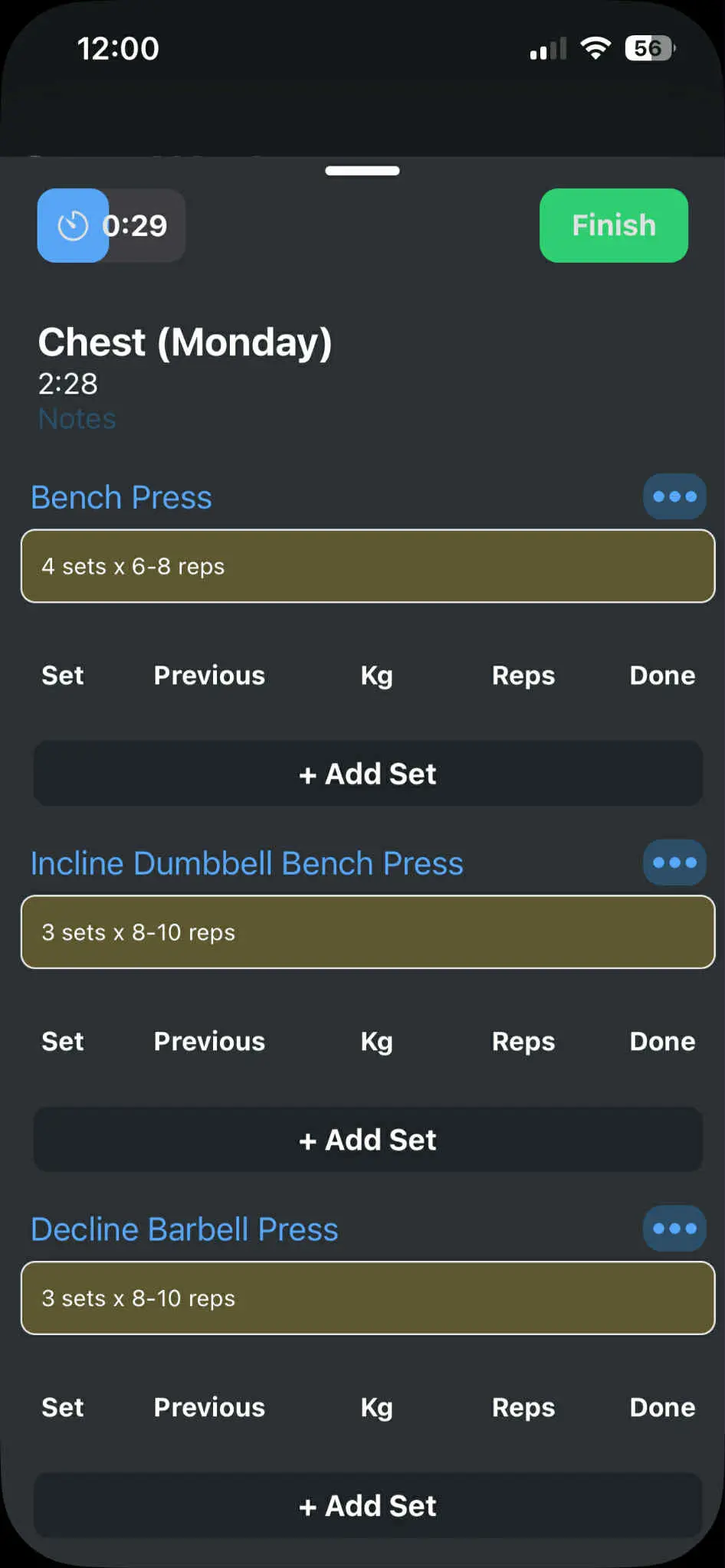
When you start a workout, a bottom sheet appears so you can focus on sets while still being able to move around the app.
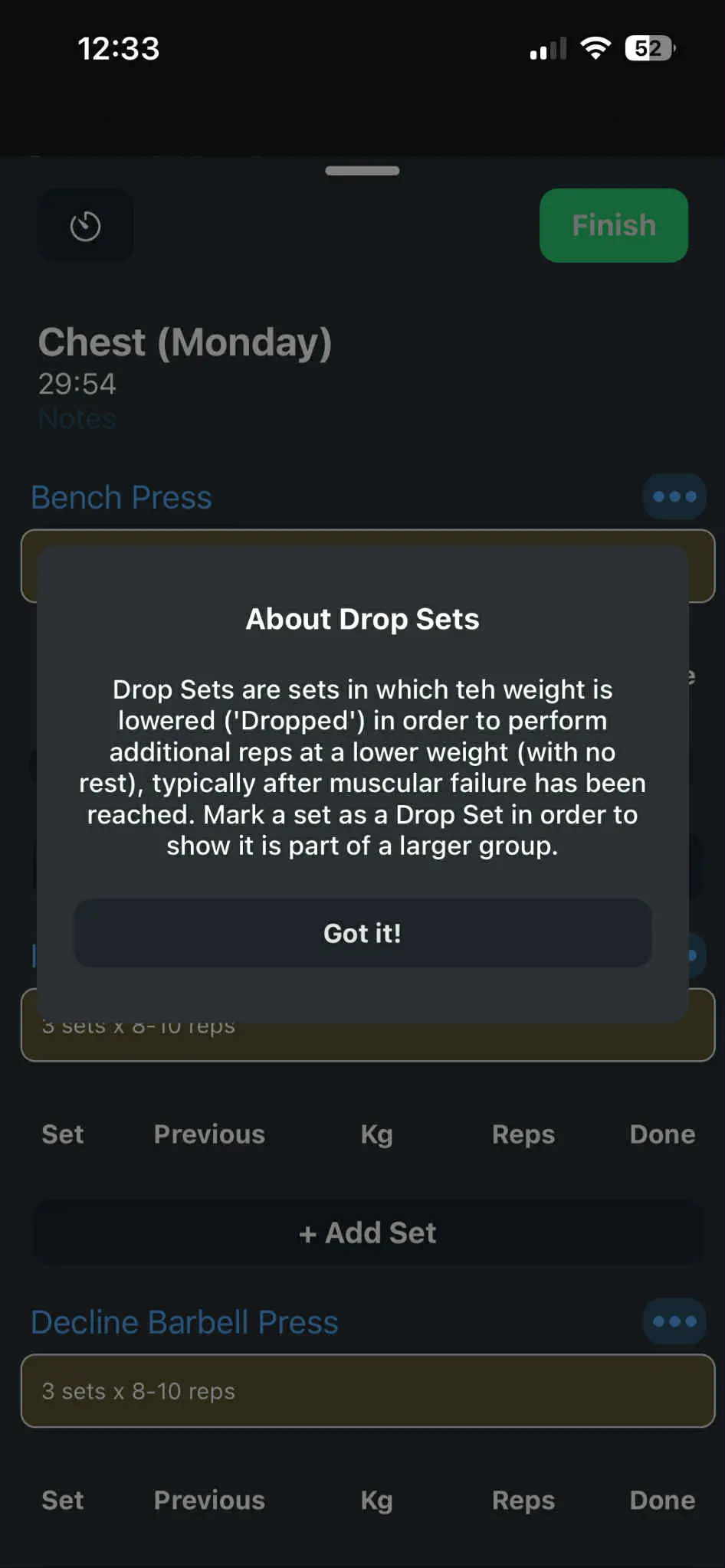
- Change set types quickly – for example warm-up sets and drop sets
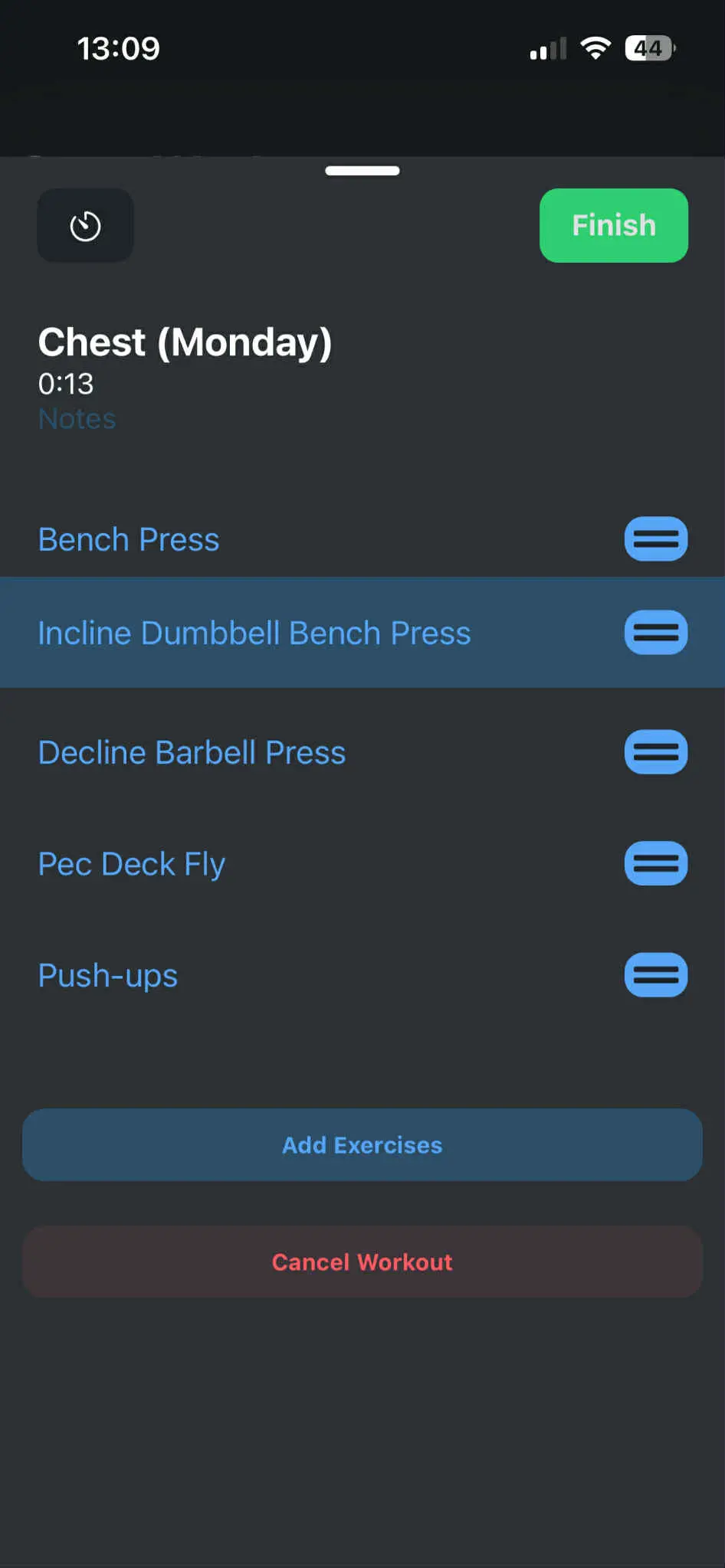
- Add, remove and re-order exercises with drag and drop inside a workout
- Attach notes to the workout or individual exercises when you need extra context
The workout view keeps everything you need in one place: sets, notes, timers and exercise details are always within a thumb’s reach so you stay present in the session instead of digging through menus.
Timers that match how you actually rest
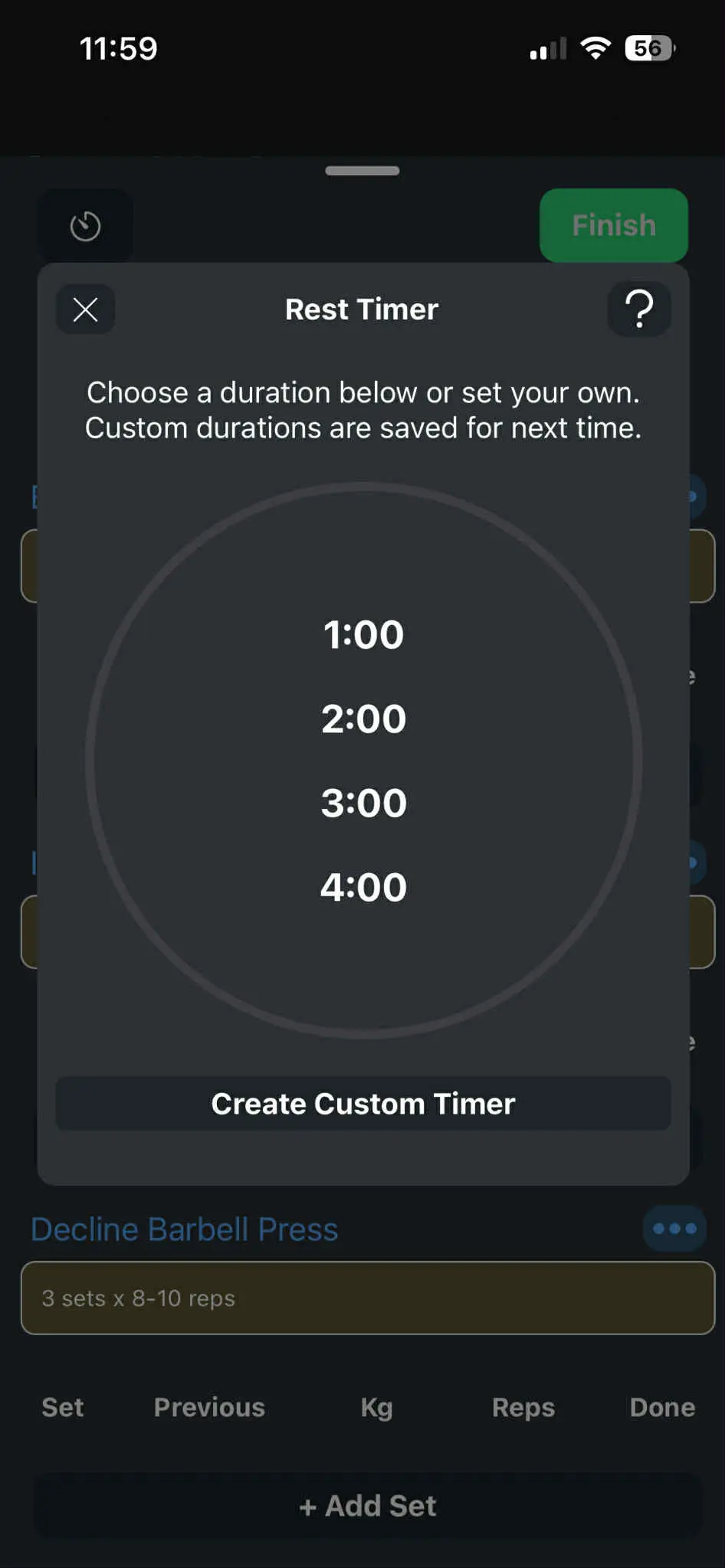
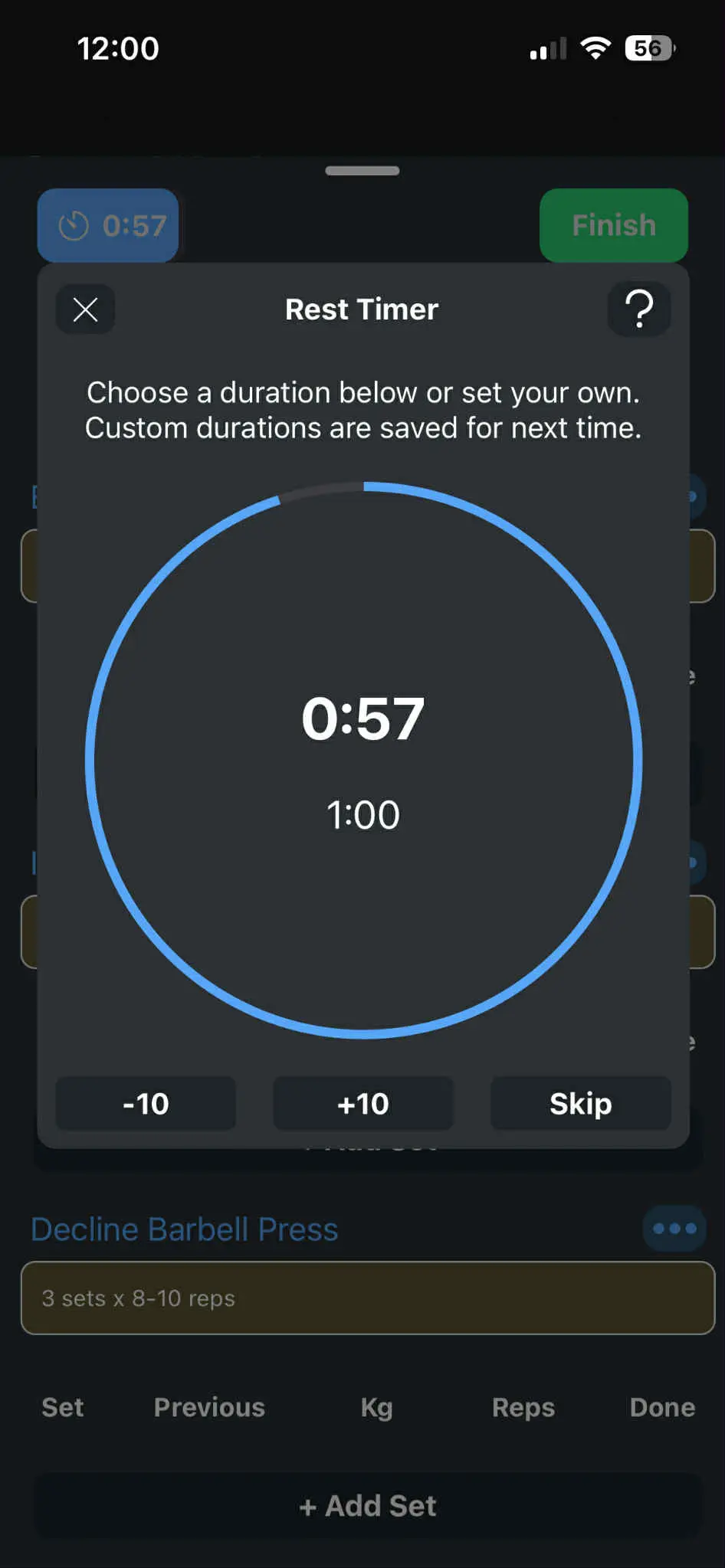
TrueGrind gives you two timers: one for the whole workout and one for rest between sets, so you always know where you are in the session.
- Choose from saved rest timers or create custom ones for your own protocol
- Skip, pause, or nudge rest with quick +10s / −10s controls
- Hide the timer modal and keep the countdown visible in the corner while you move around the app
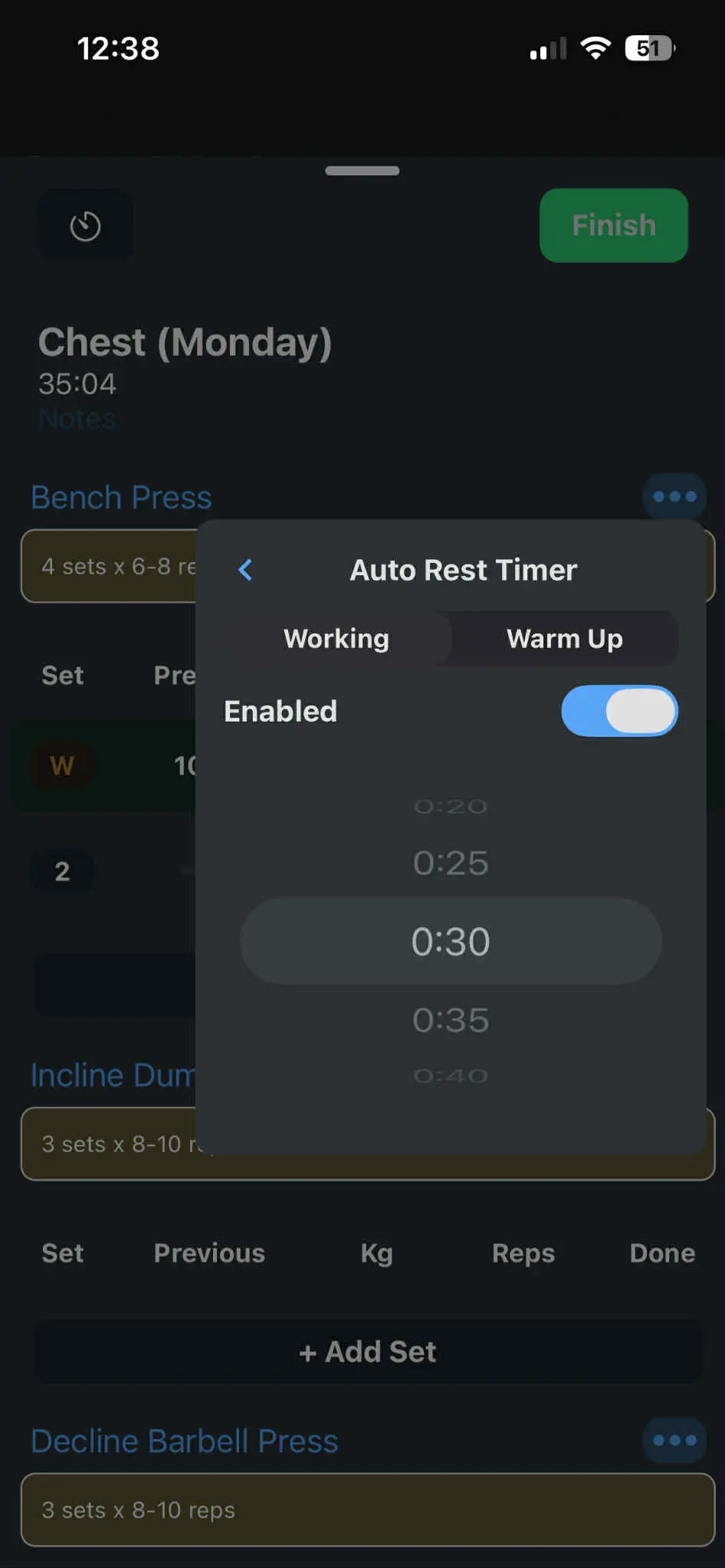
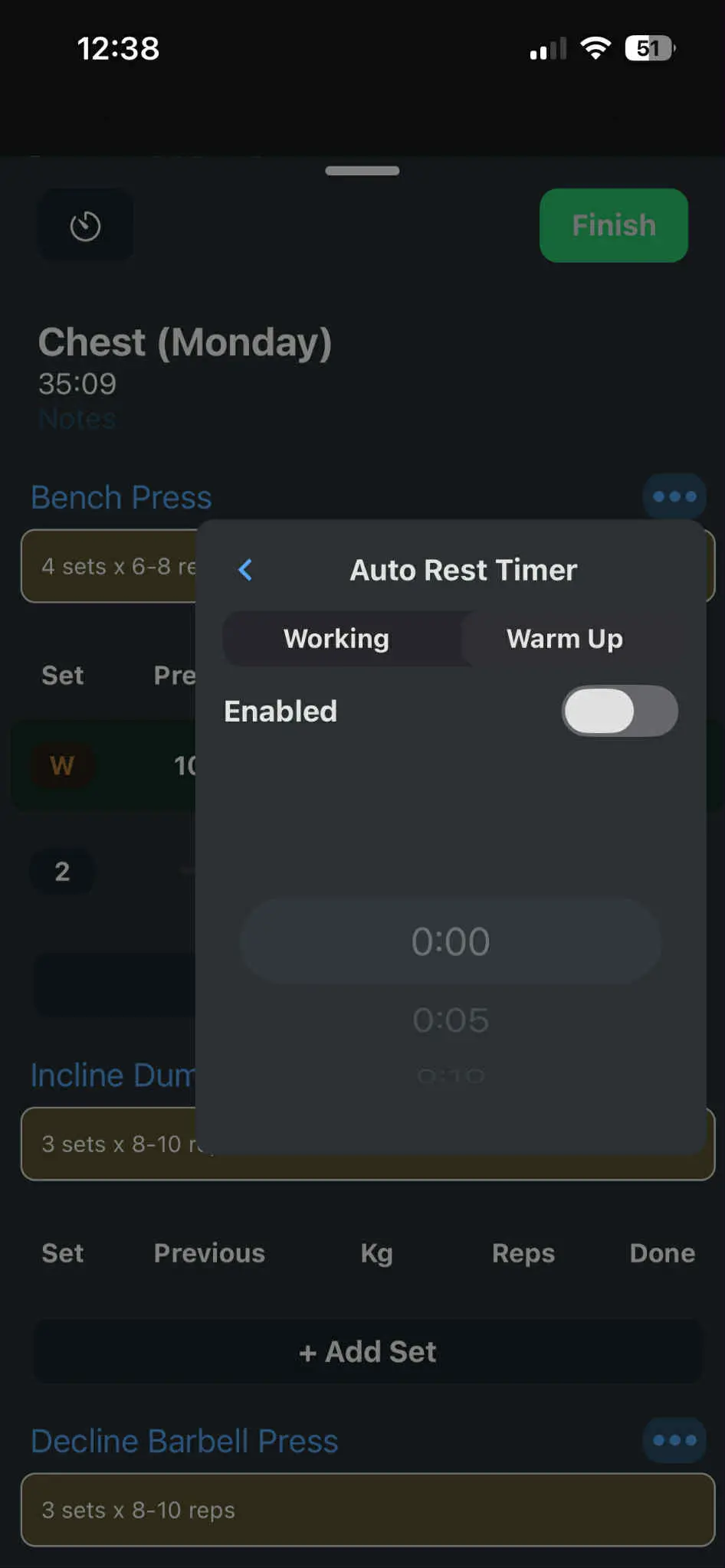
- Enable an auto rest timer that starts automatically when you complete a set, with different presets for warm-up sets and working sets
The goal is simple: no more guessing if you’ve rested long enough, and no more fumbling with a separate timer app in the middle of a hard set.
Custom keyboard made for lifters
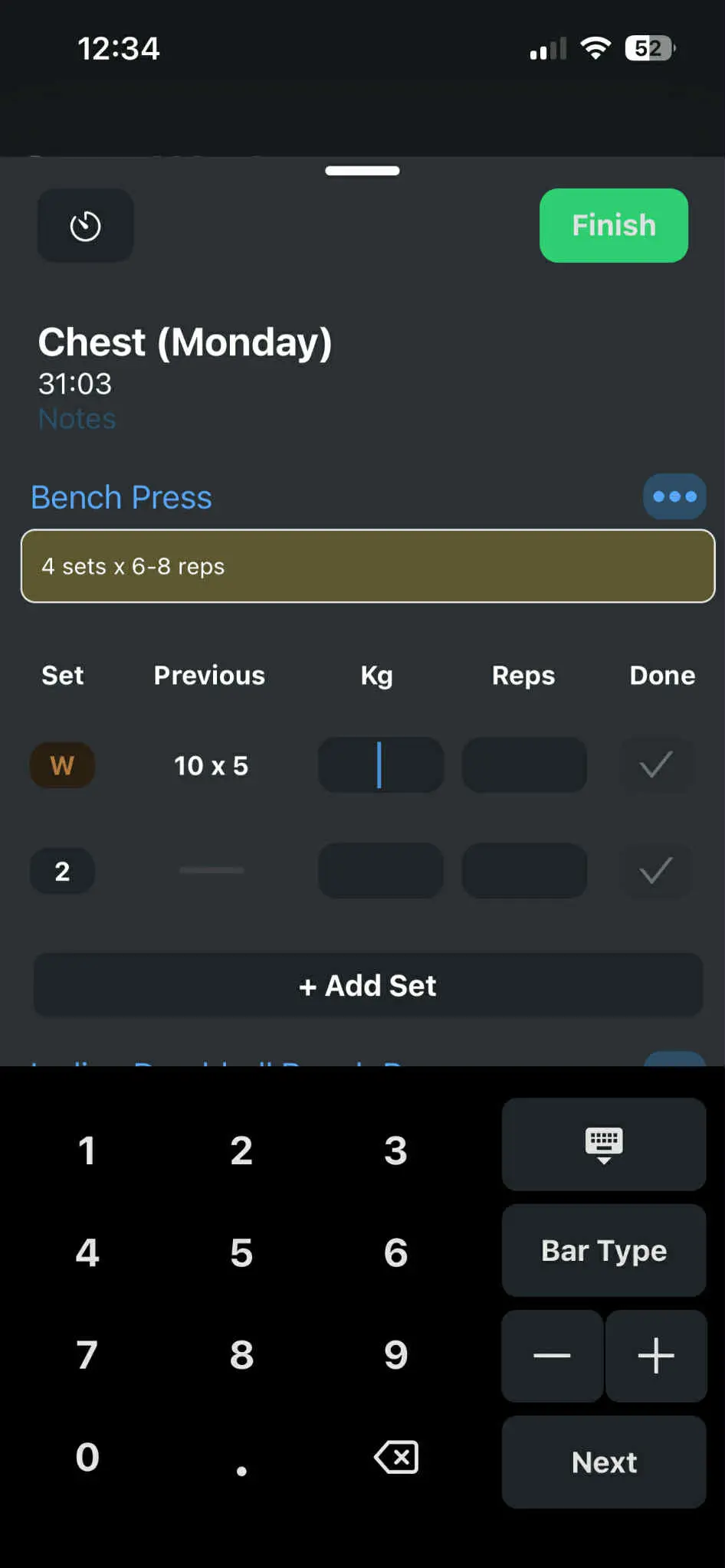
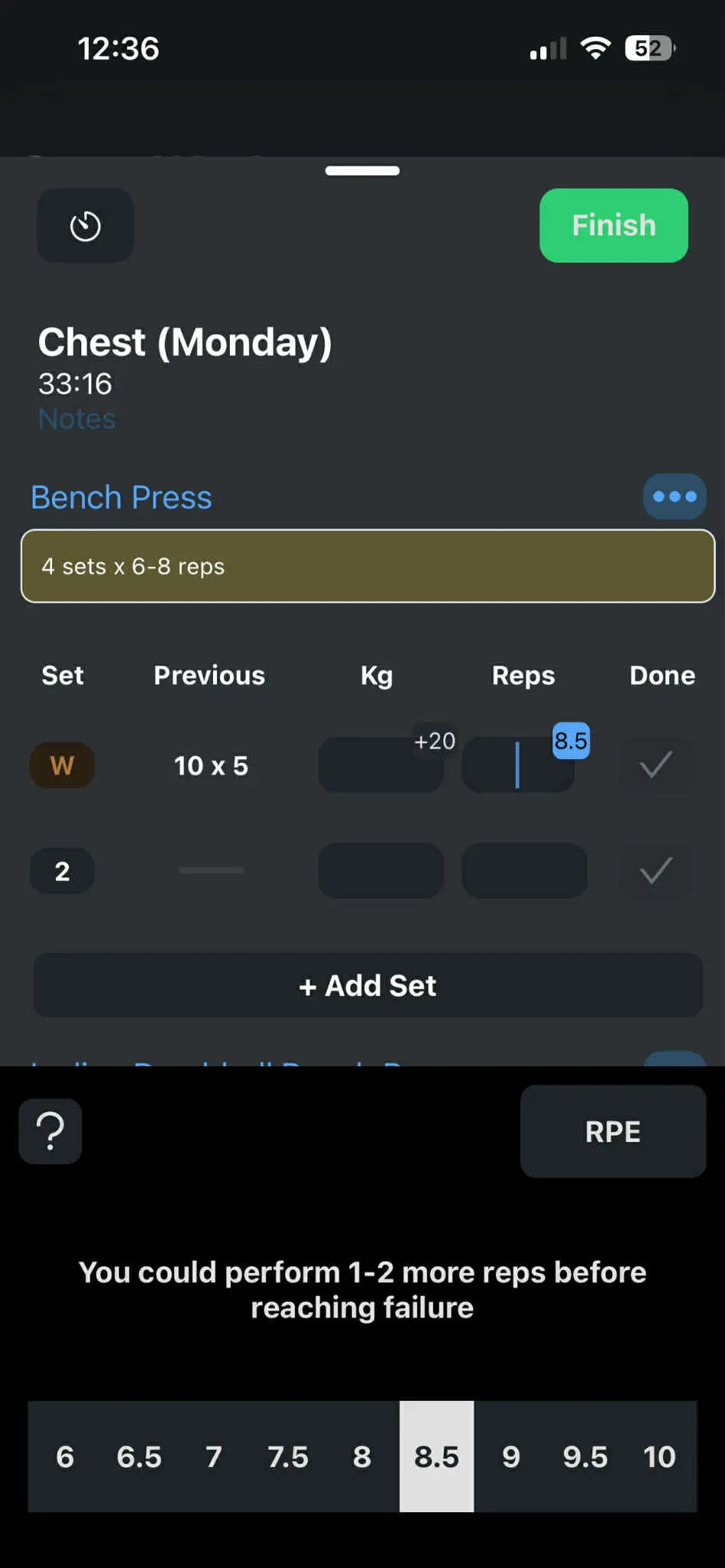
The keyboard in TrueGrind isn’t a generic phone keyboard – it’s built around the way lifters actually log sets.
- Enter weight and reps with a clean numeric layout optimised for one-handed use
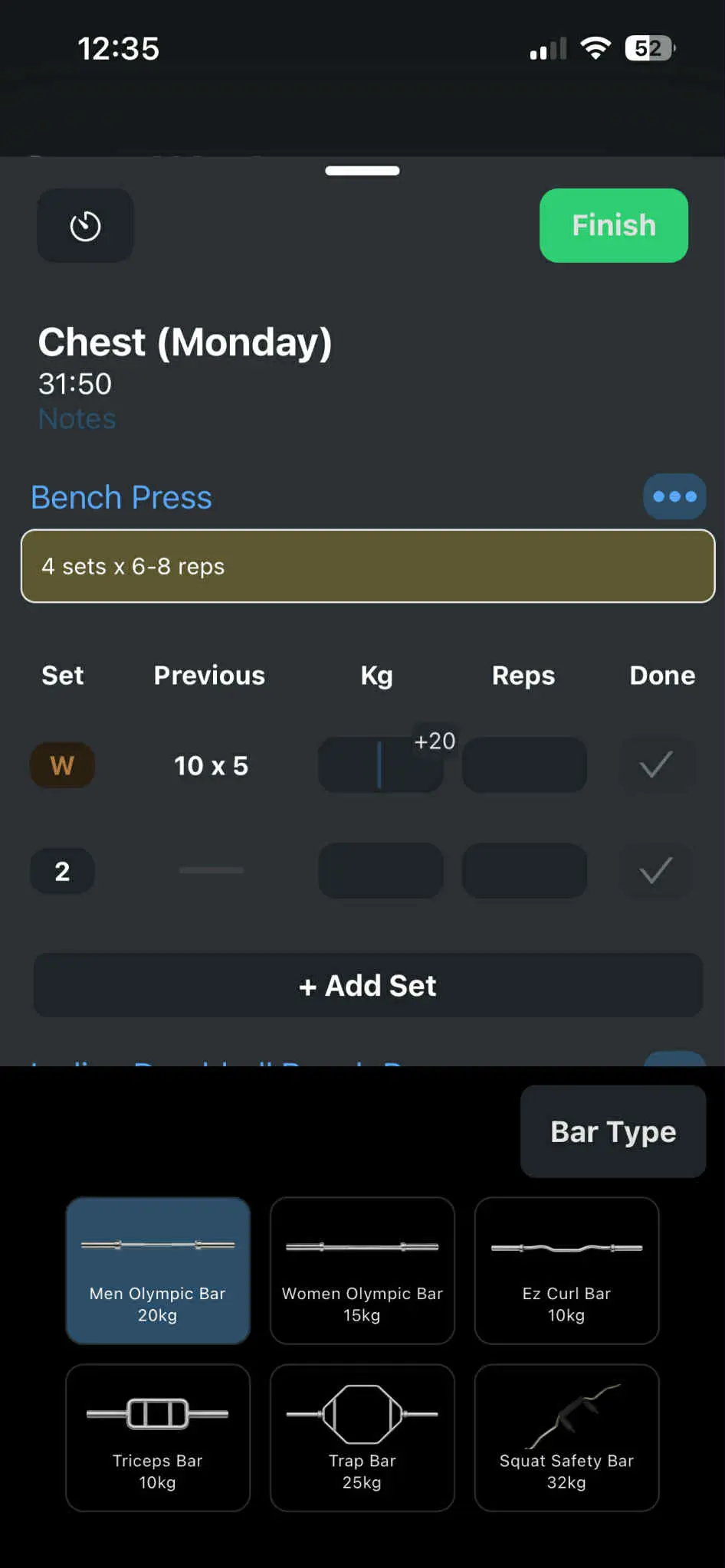
- Include bar weight by choosing bar type, so your numbers stay accurate even if you usually count only plates
- Use quick + / − buttons to bump weight or reps without re-typing everything
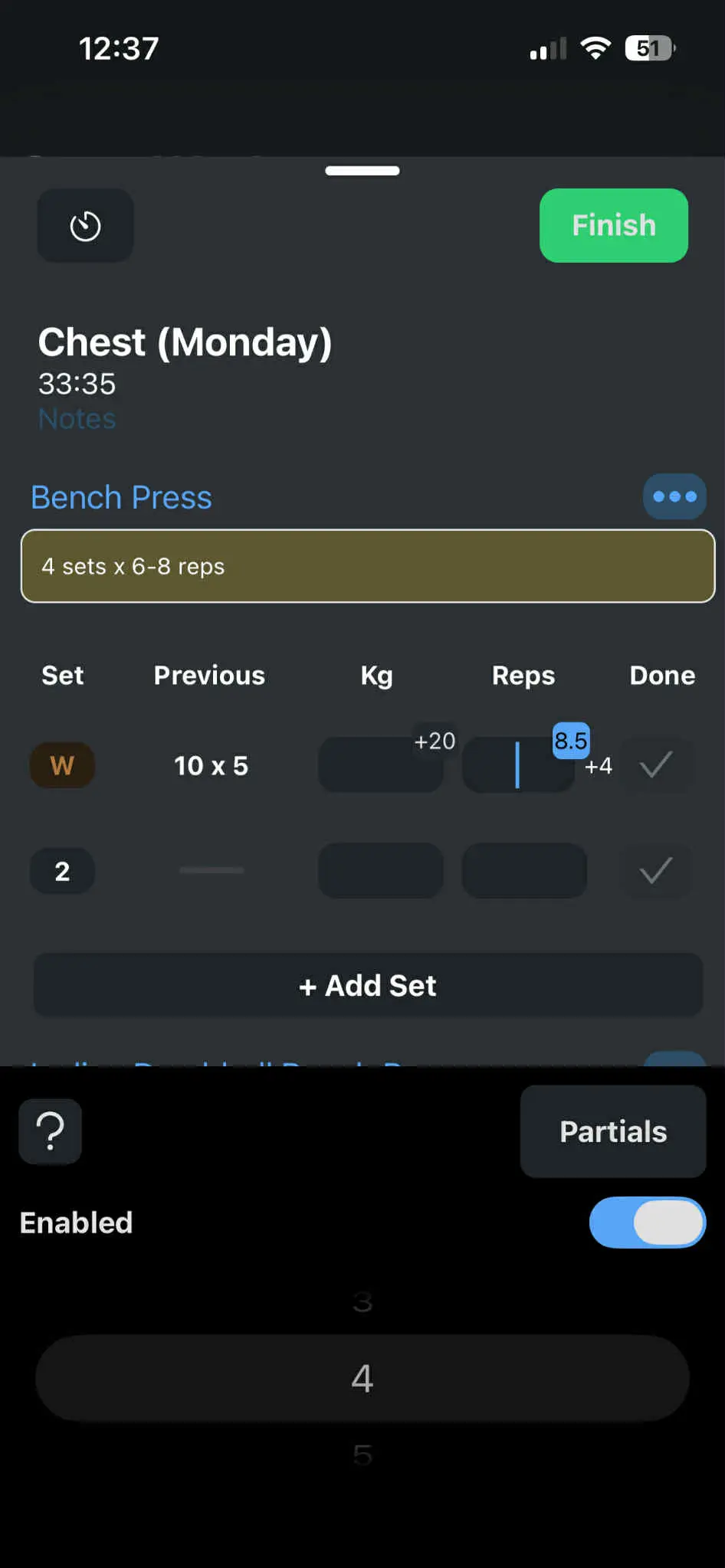
- Log RPE and partials directly from the keyboard when you care about effort and range of motion
- See the previous best for that exact set so you know what to beat before you even start lifting
Combined with warm-up and drop-set options, the keyboard makes each set fast to log and detailed enough to actually guide future training decisions.
Finish screen, PRs and Strava sync
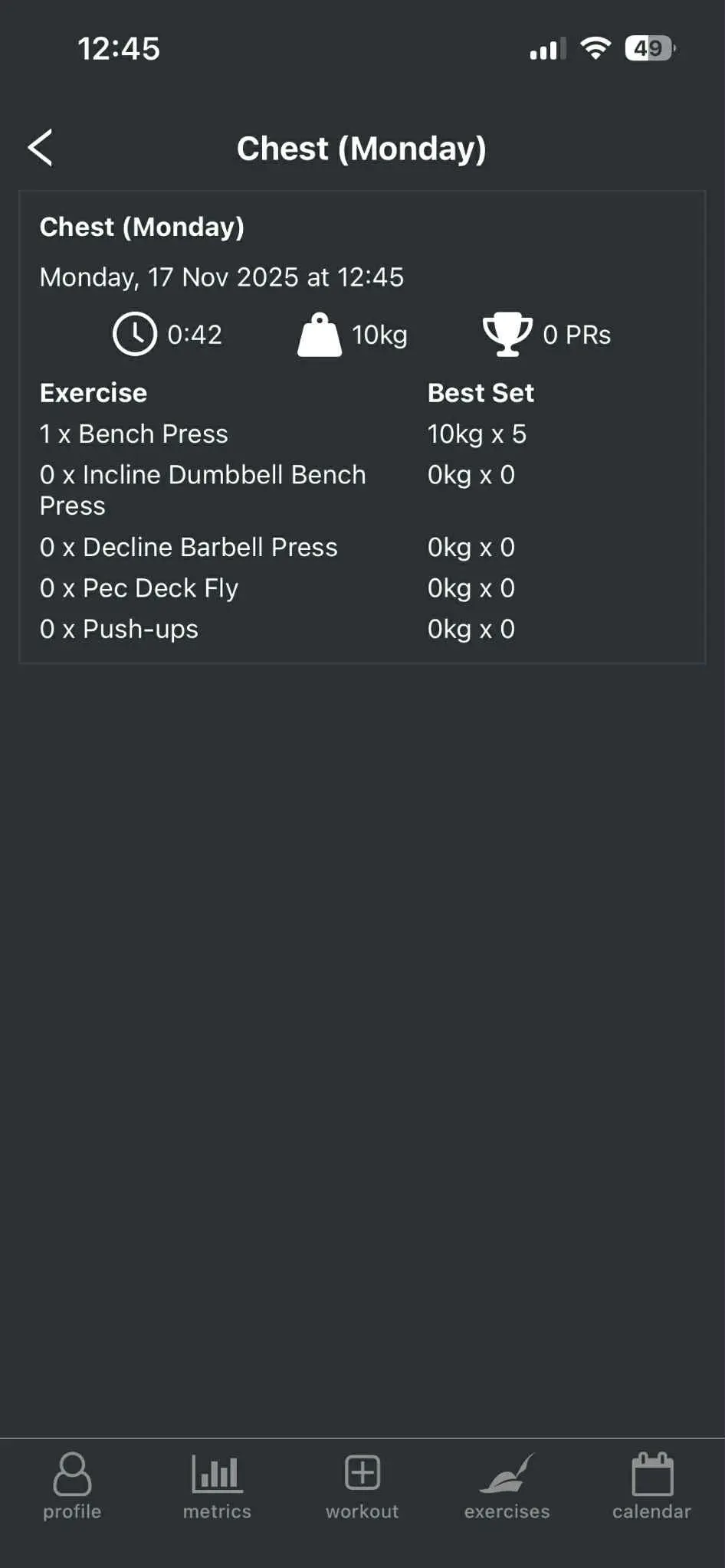
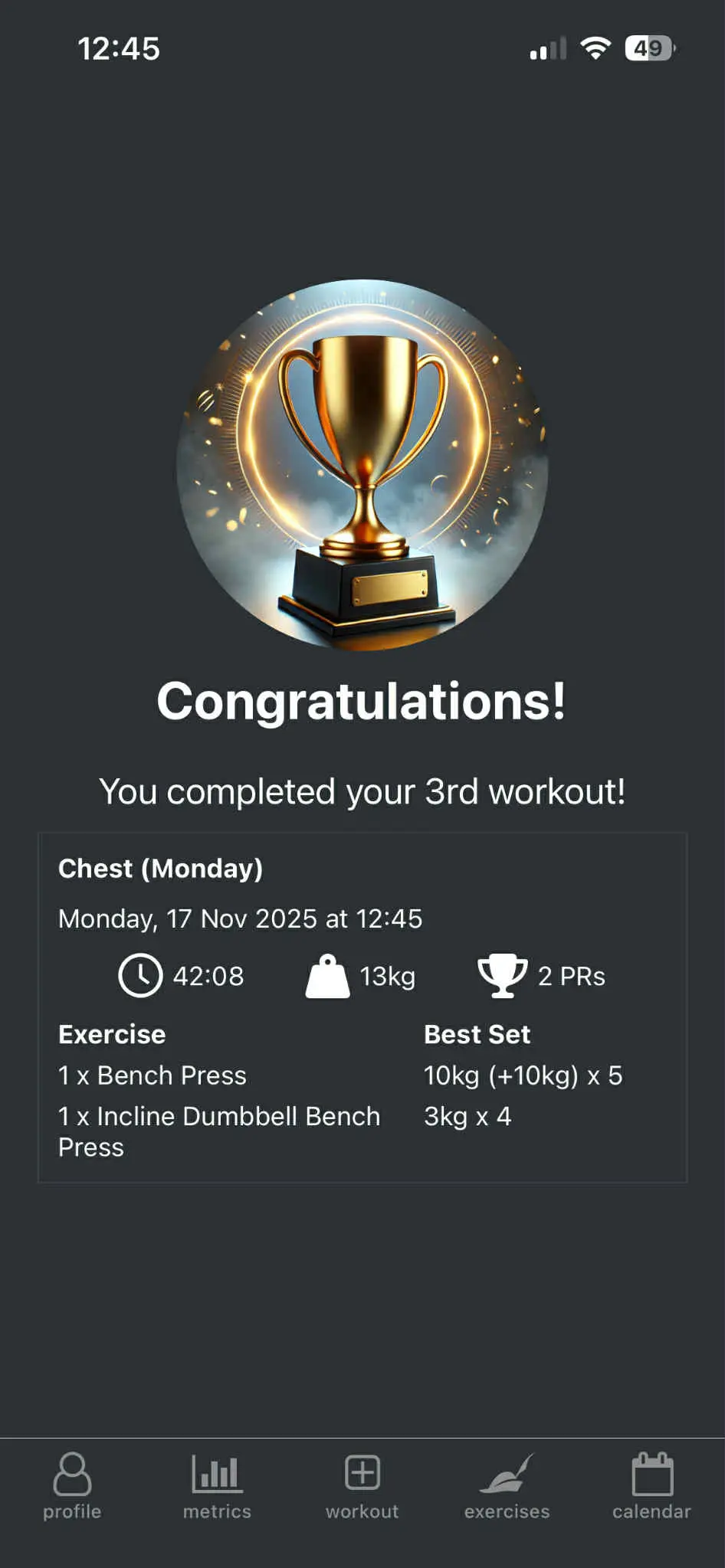
When you hit Finish workout, TrueGrind gives you a clean summary instead of just dropping you back on the main screen.
- Total workout time and an overview of what you did
- How many PRs you set during the session (per-exercise records)
- A list of exercises with their best set so you can review your effort at a glance
- Completed workouts are saved in history and can be opened later with all their details
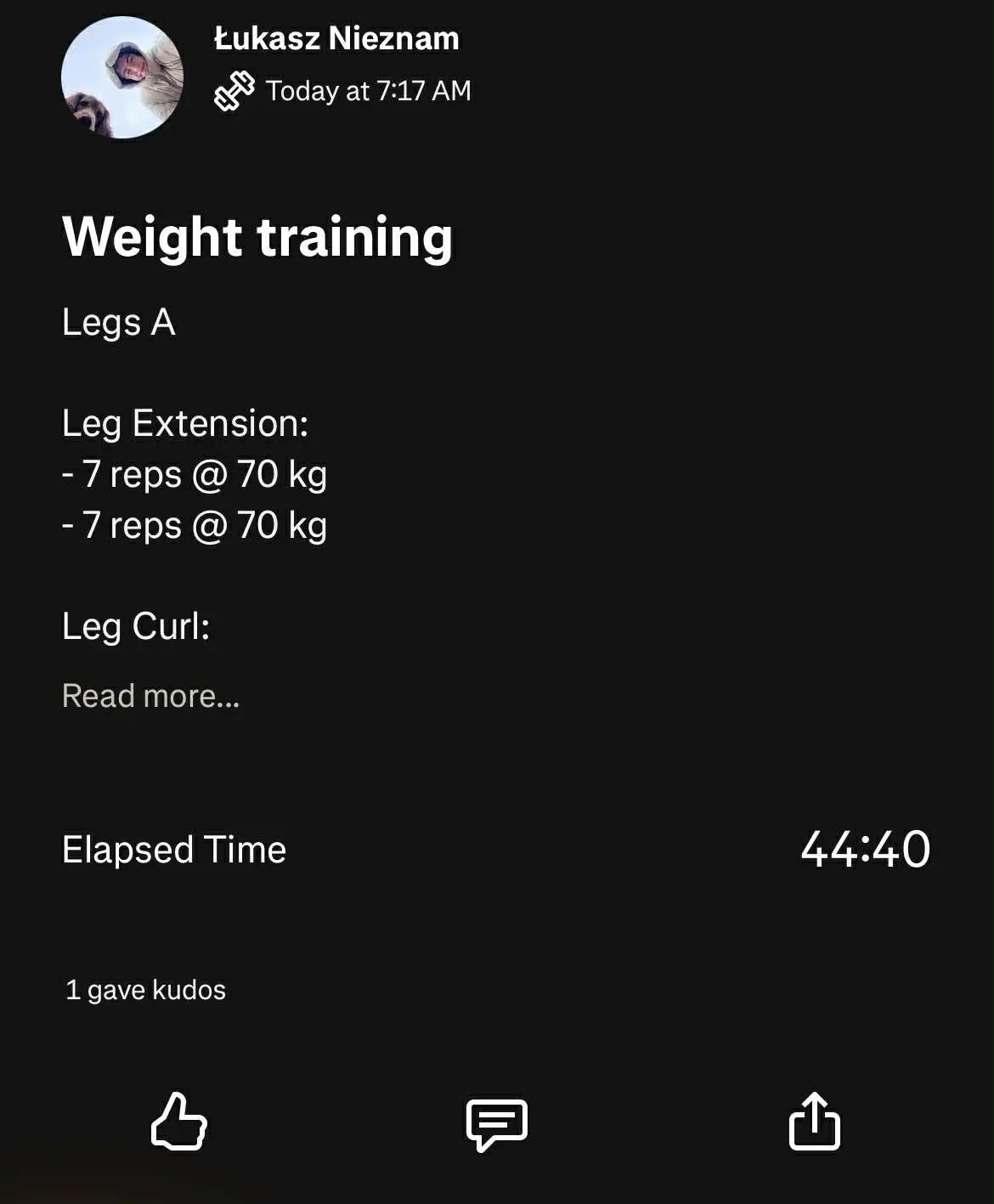
If you’ve connected Strava, the finished workout can be uploaded there automatically so your training log stays in sync across platforms.
Deep history for every exercise
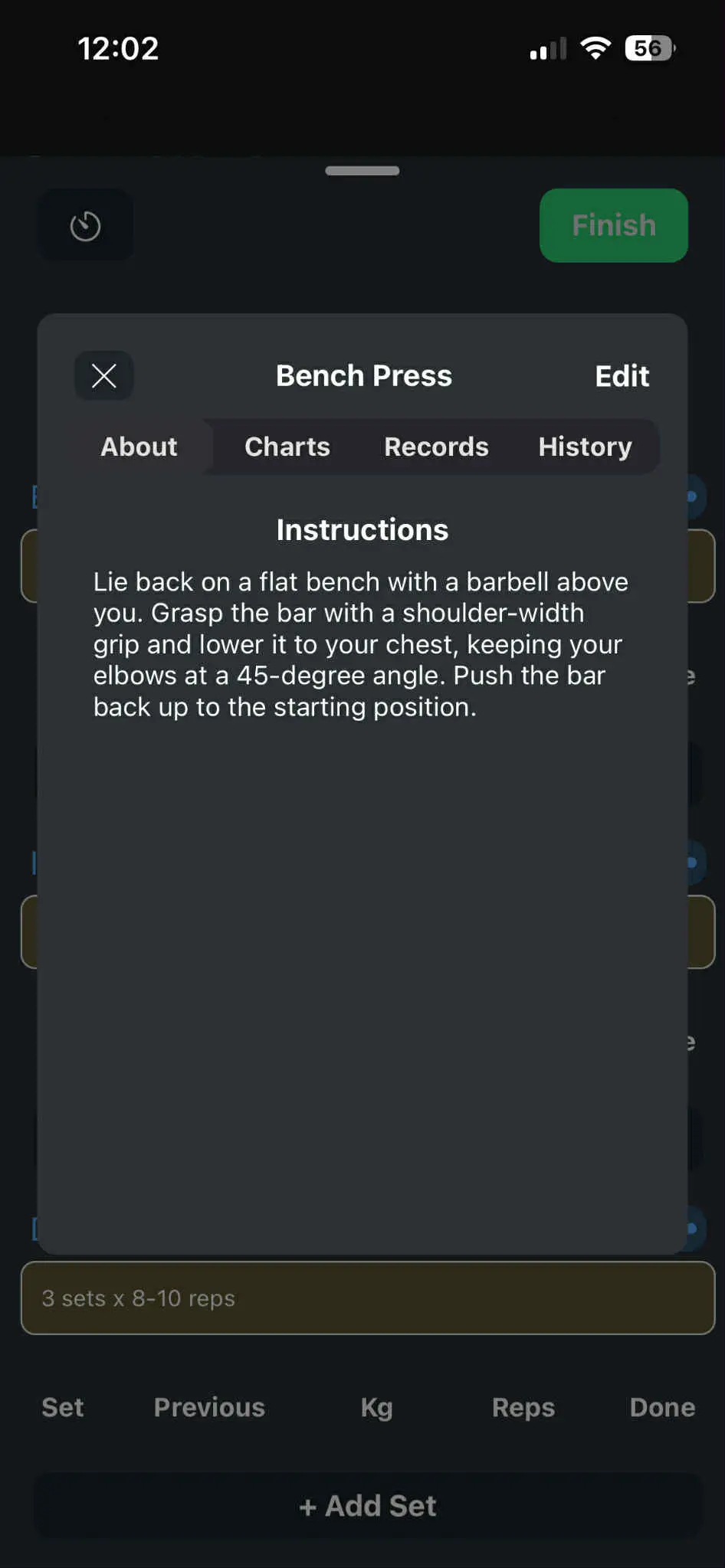
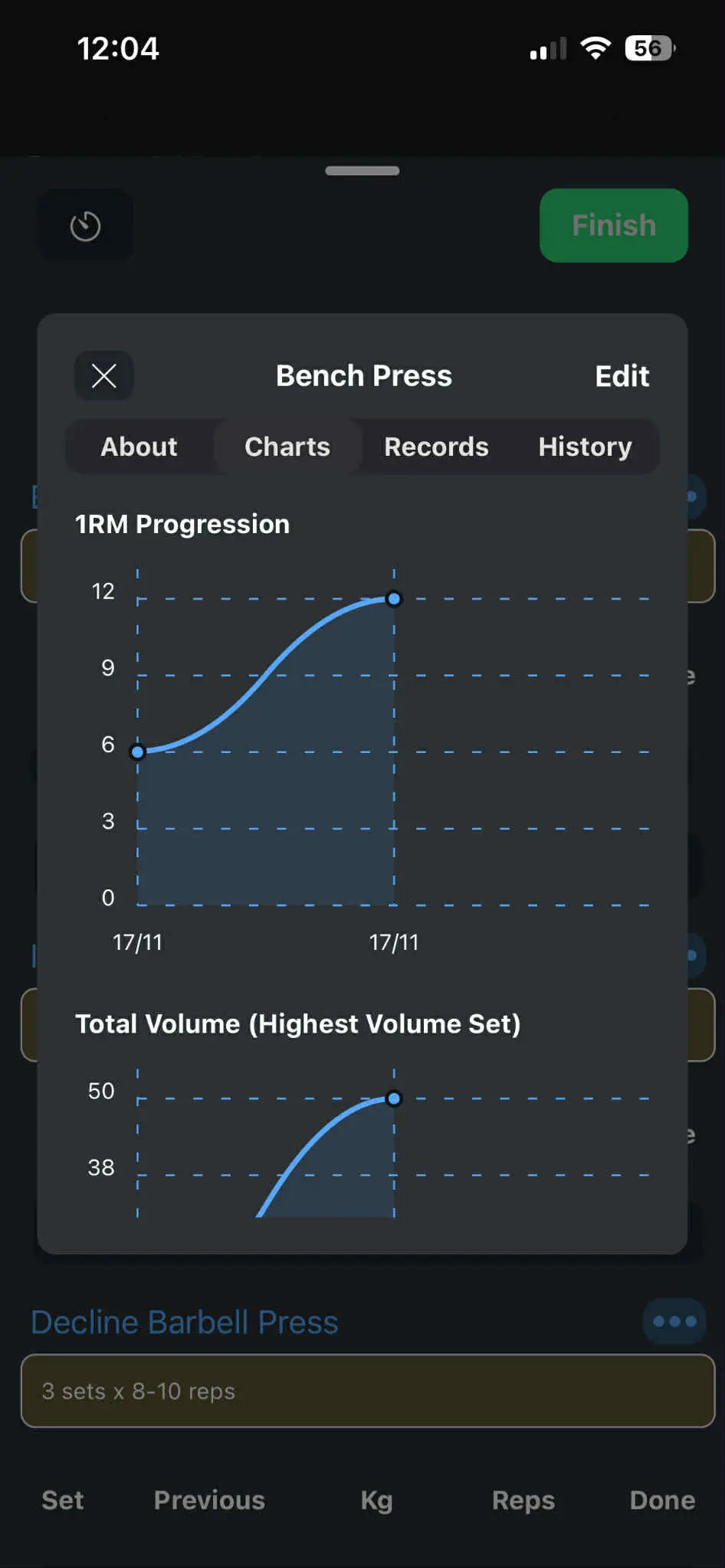
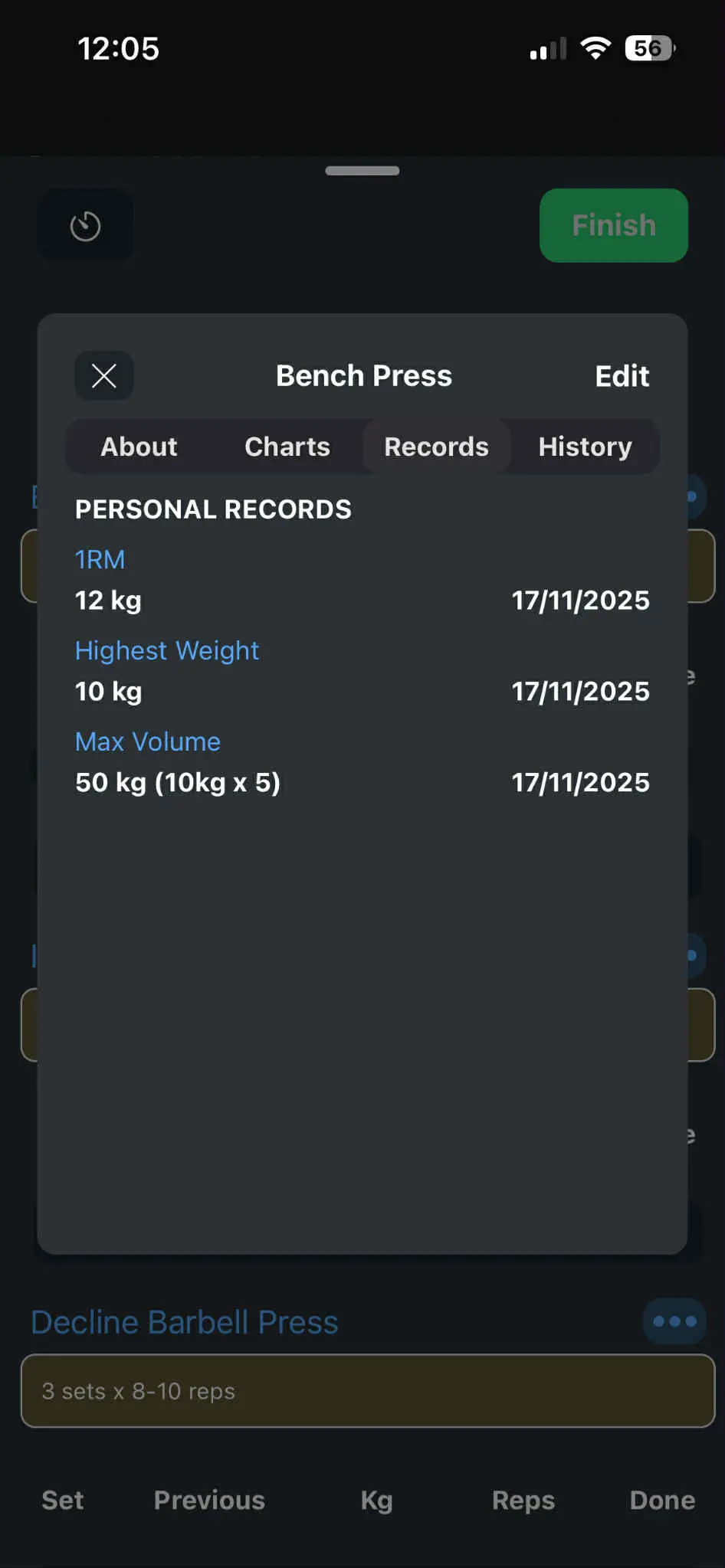
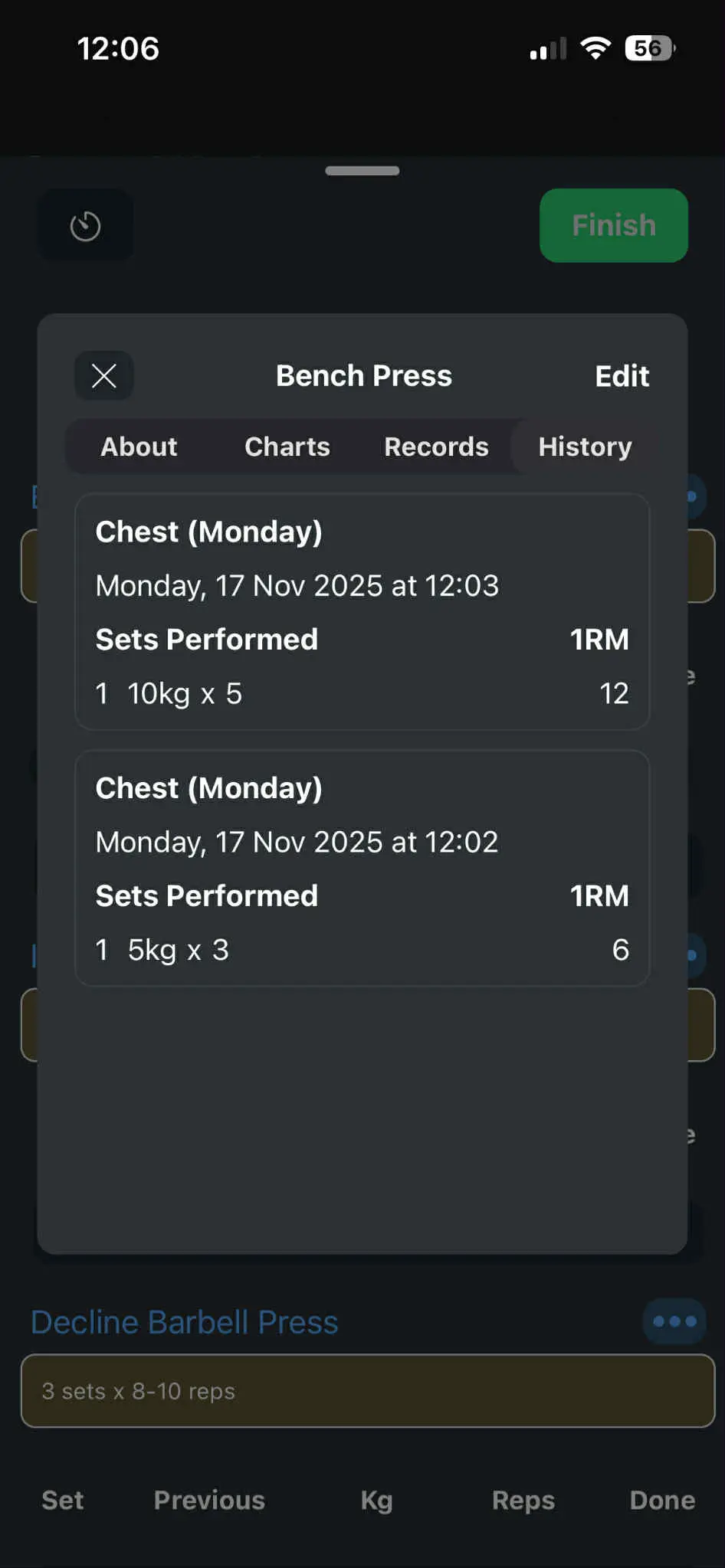
Tapping an exercise name opens a detail modal with everything you need to know about that movement.
- Image and instructions for proper form (when provided)
- Charts from your previous workouts: 1RM progression, total volume, heaviest weight per workout and max consecutive reps
- Records tab: your best performances on that exercise
- History tab: when you did it, in which workout, and how you performed
Every exercise becomes its own mini training log, so you can see if a movement is actually driving progress instead of just logging numbers into a void.
Exercise library with filters and supersets
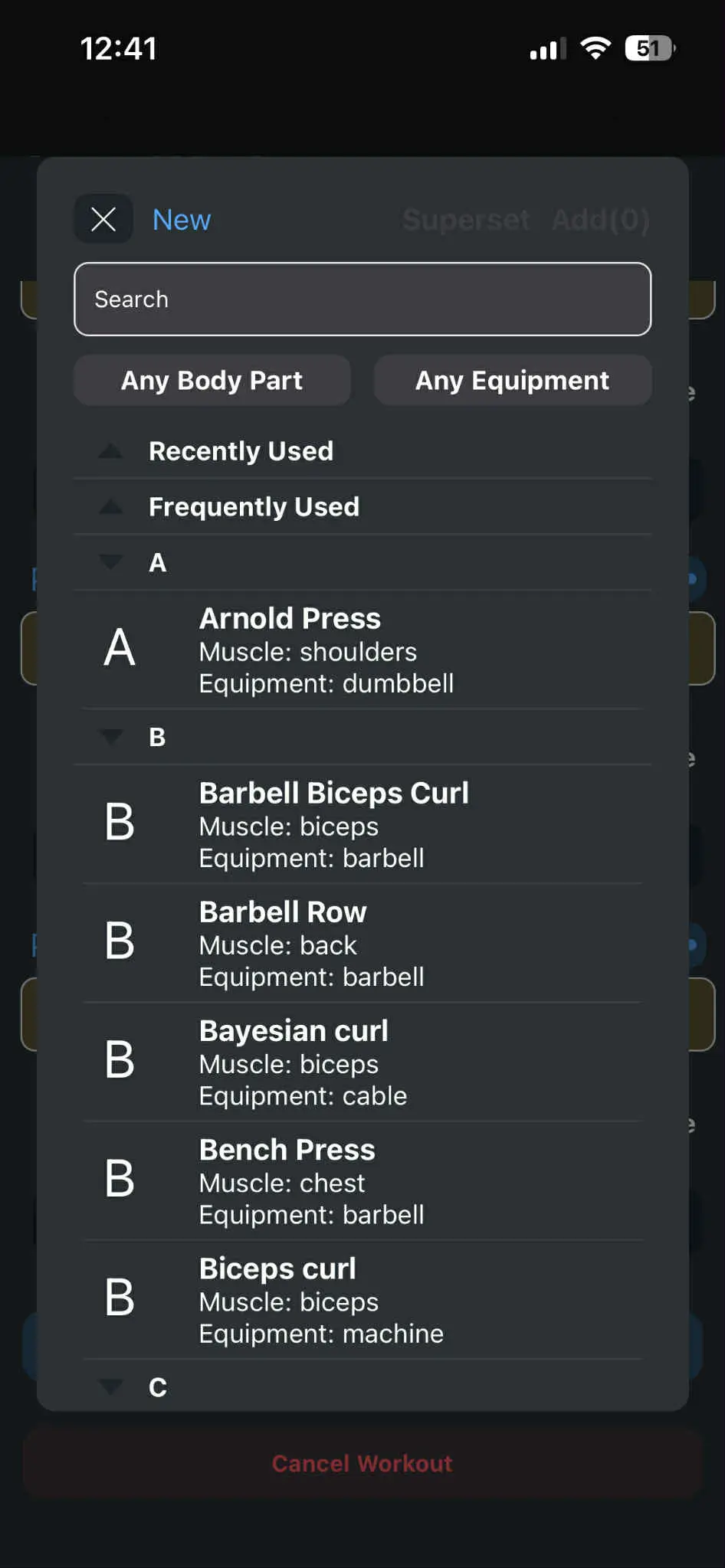
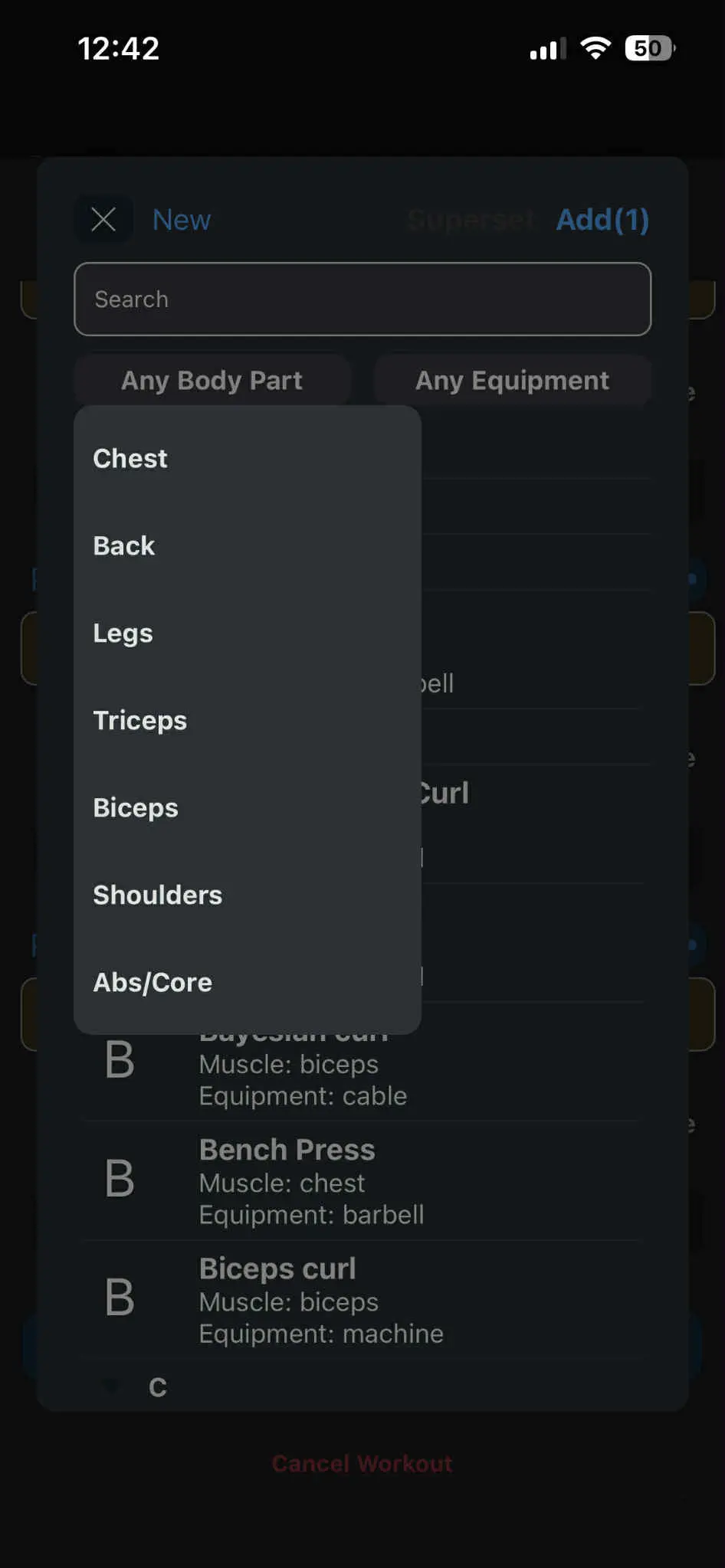
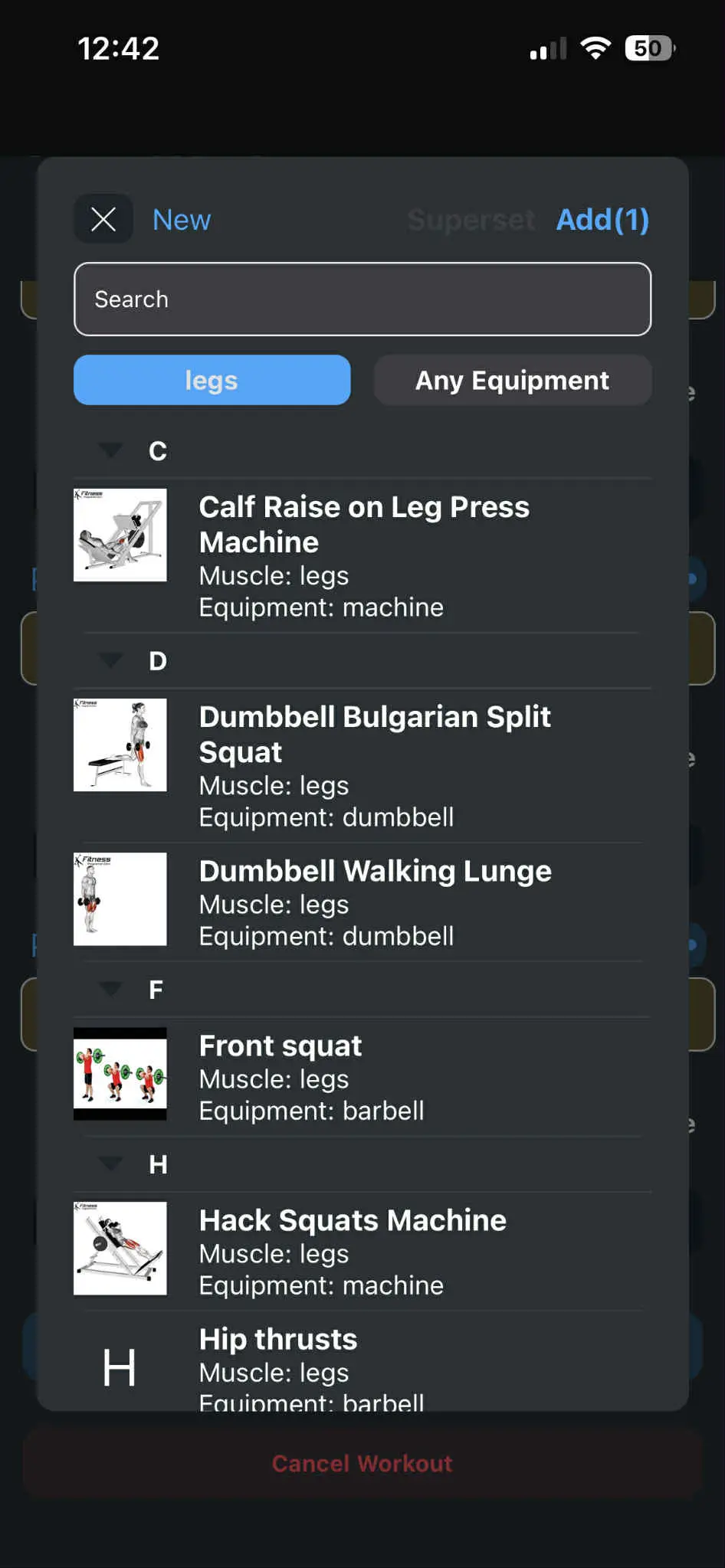
The Exercises tab shows the full exercise library – the same list you use when replacing or adding exercises to a workout.
- Browse all movements in an alphabetical list
- Filter by body part or by equipment
- Create your own custom exercises when something is missing
- Add multiple exercises together as supersets to run them back to back
You can tap any exercise here to open the same detail view with instructions, charts, records and history.
Calendar & history that sync with your phone
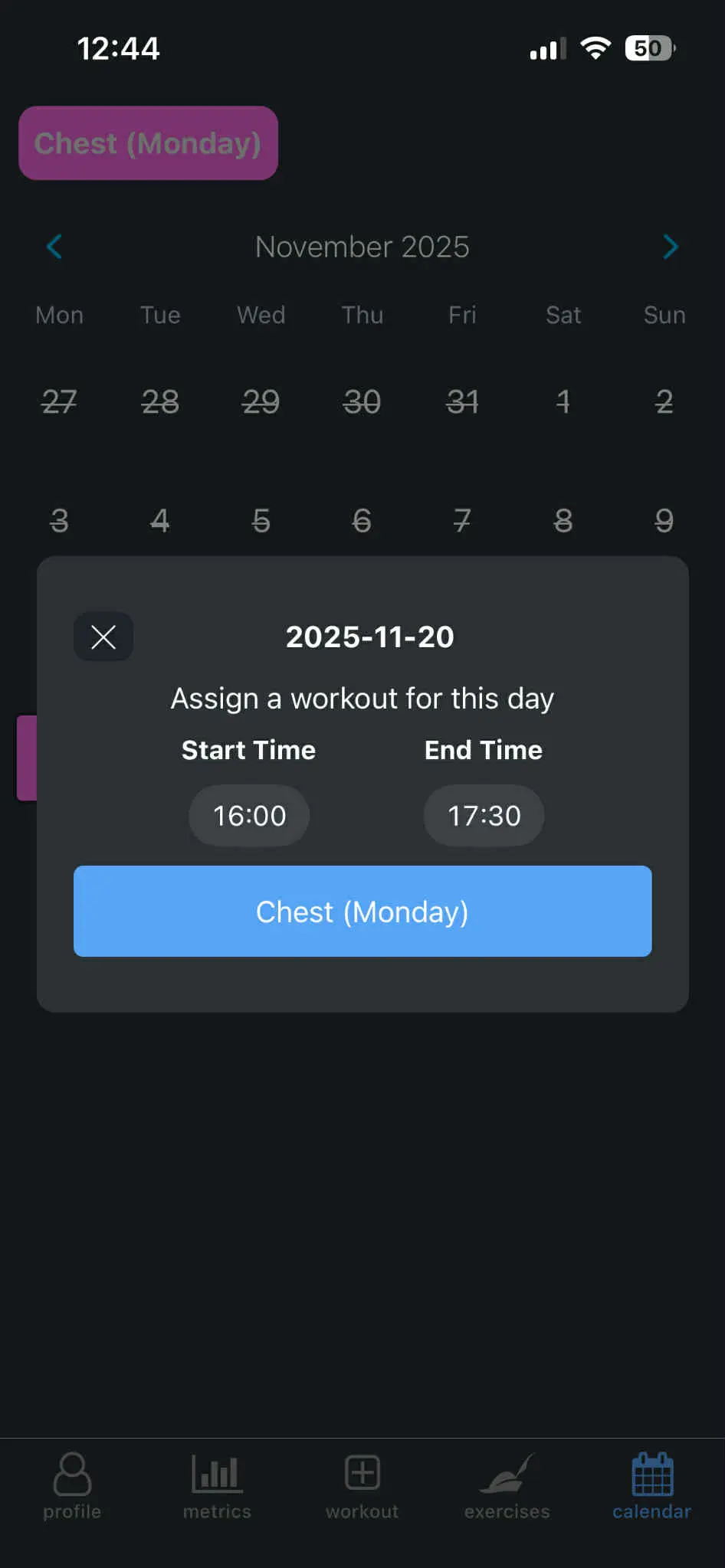
The Calendar tab shows when you trained and what you did on each day.
- See completed workouts and filter them by tapping a day
- Tap a past workout to jump straight into its history and details
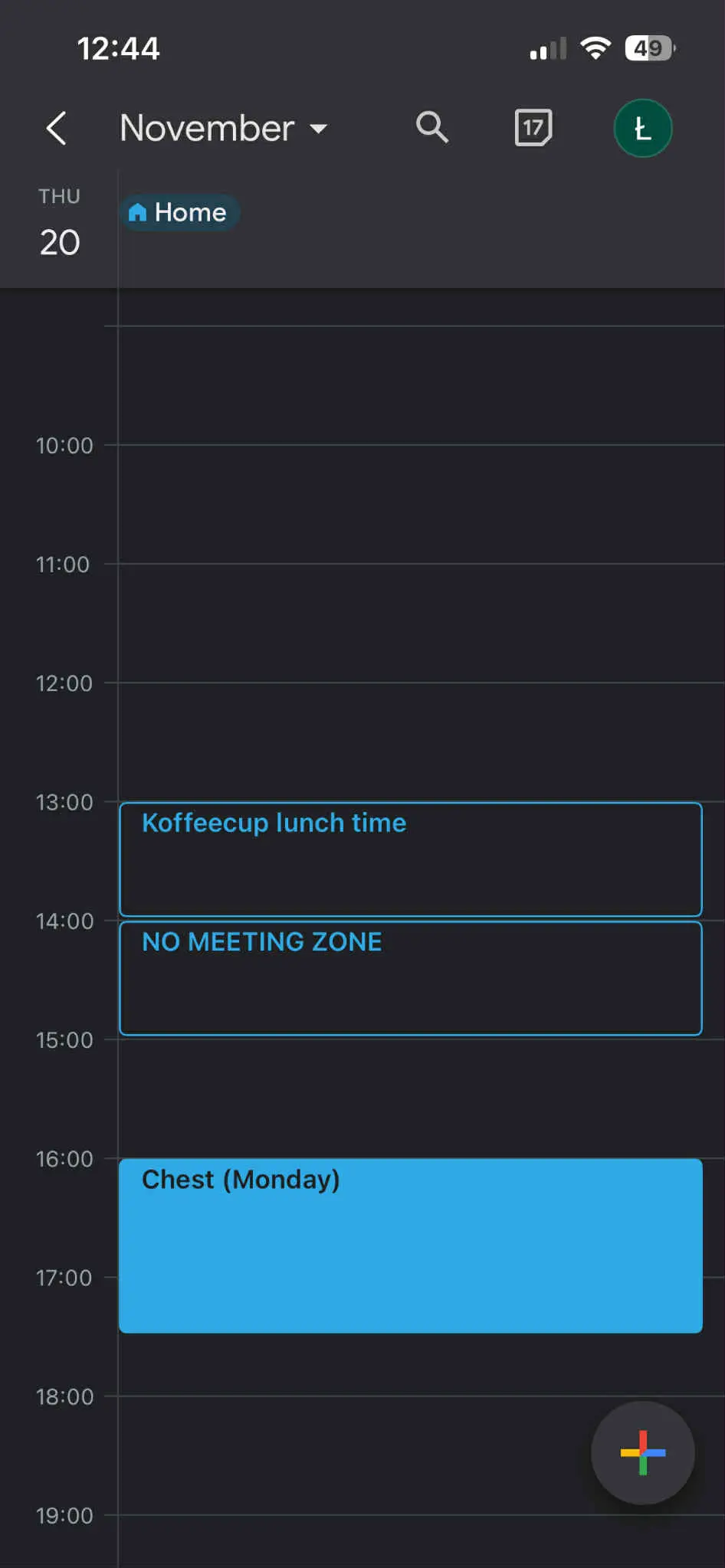
- Create new calendar events by selecting a day and choosing start time, end time and workout
- Events are added to your phone calendar and upcoming workouts also appear on your profile
Together with Strava sync and the finished workout screen, the calendar turns your training into a readable story instead of a scattered list of sessions.